Overview
How to load patients and sync transactions from TDO to QuickBooks Online.
Must have a QuickBooks Online account and a company file set up. Note: if your office is in Canada you must disable taxes within QuickBooks.
Must have TDO Cloud Services and TDO Payments.
Must have QuickBooksOnline synced with TDO. Please contact support to get started.
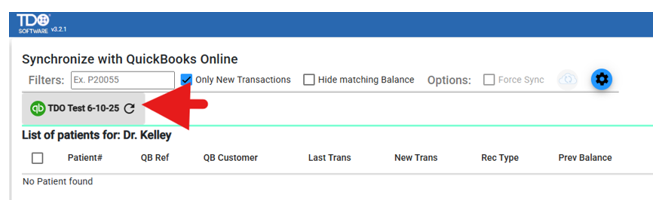
Click on the Company name, and the patients will be loaded/reloaded.
After setting up the doctor and connecting the application to QBO, you are ready to sync the transactions.
Only New Transactions:
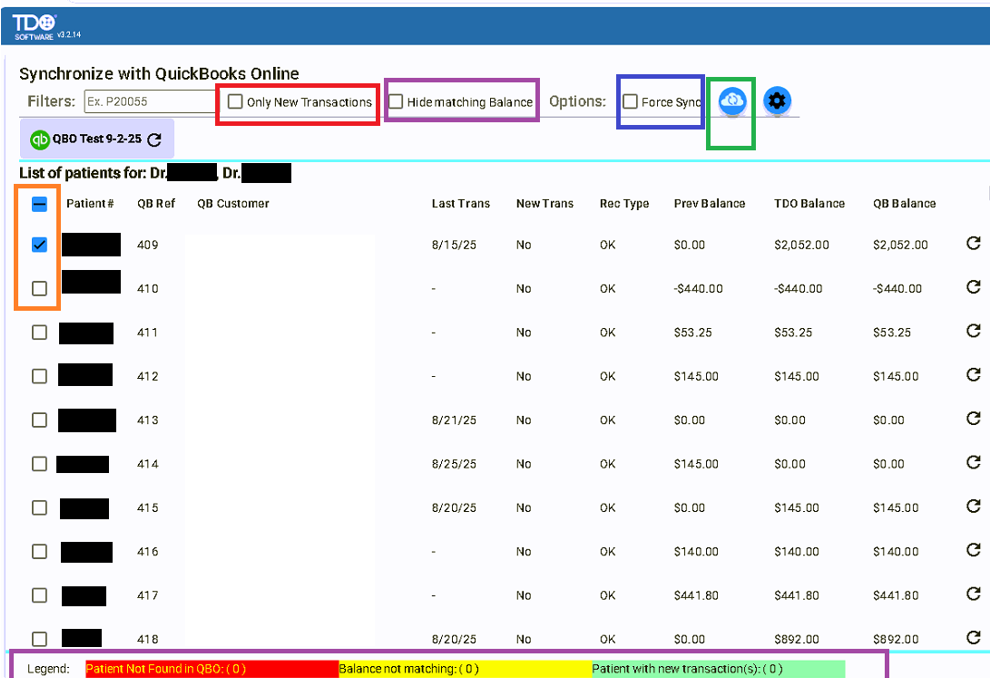
If the box is checked, only patients with new transactions since the last sync will load.
If the box is unchecked, all patients from the sync start date forward will load
For an initial sync, it is critical to load ALL patients.
Select 1, multiple, or all patients for the sync (initial load would be all patients)
The cloud icon will sync the patients that have been selected by checking the box for that line.
The force sync check box is only available for one patient at a time. If you have multiple or all patients selected, the sync cloud icon will not be available.
The Legend at the bottom will flag any patients not found, not matching, or with new transactions that were not yet sent to QB. You can click the Hide matching Balances check box at the top of this to filter only those out to then force one by one to attempt to fix.
If there are patients that do not match, click on hide matching balance and then select one patient and click the box Force Sync, and then the cloud icon.
Article ID: 1032
Created: December 19, 2025
Last Updated: August 10, 2026
Author: TDO KB [web_admin@tdo4endo.com]
Online URL: https://kb.tdo4endo.com/article.php?id=1032