Saving a PDF in the Image Organizer or Acquire
Overview
Options to save a PDF in TDO
Saving using Image Organizer
- Open the Organizer
- Open the location on the computer where the PDF is saved
- Drag & drop the desired PDF into the Organizer
- A pop-up window titled Missing Information will open, requiring that you select the Category and Tooth to be associated with the PDF
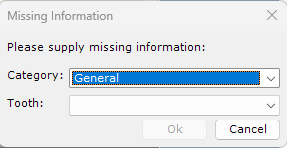
- Click Ok
- A pop-up will appear briefly confirming that the PDF has been saved - you should be able to see the PDF in the Image Organizer now
Saving using Acquire
Method 1: Drag + Drop
- Open Acquire
- Open the location on the computer where the PDF is saved
- Drag & drop the desired PDF into the Acquire window
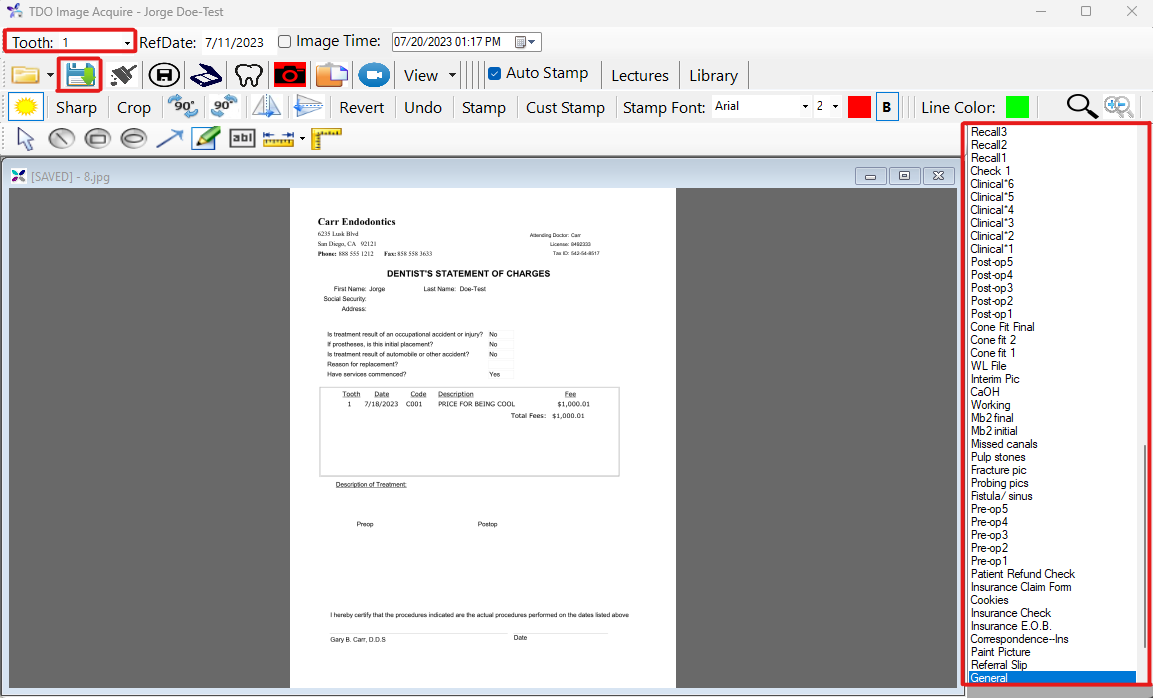
- Select the desired Category (on the right) to be associated with the PDF (if none are selected it will revert to the default Category)
- Select the desired tooth number using the dropdown in the top left corner labelled Tooth
- Click the floppy disk with a green downward arrow icon to Save the PDF
Method 2: Open File Explorer through Acquire
- Open Acquire
- Click on the yellow envelope icon in the upper left
- Click Open ... - this will open up FIle Explorer from your computer

- Navigate to the desired PDF in File Explorer, once found, click on it and click Open
- Select the desired Category (on the right) to be associated with the PDF (if none are selected it will revert to the default Category)
- Select the desired tooth number using the dropdown in the top left corner labelled Tooth
- Click the floppy disk with a green downward arrow icon to Save the PDF
Article ID: 357
Created: November 29, 2015
Last Updated: February 26, 2026
Author: TDOKB1 [IT@tdo4endo.com]
Online URL: https://kb.tdo4endo.com/article.php?id=357