Overview
This feature will be a quick way to attach images to an email message or add image attachments using the direct file path.
Detailed Instructions
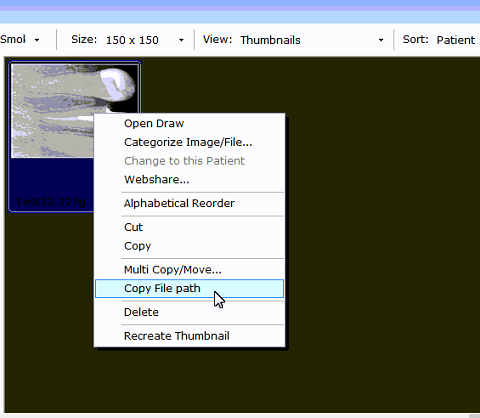
Open Organizer in TDO, then right-click on one image at a time and select “Copy File Path.”
Go to your Gmail or any other email account, click on Compose or New Message. (This may vary depending on the email provider used)
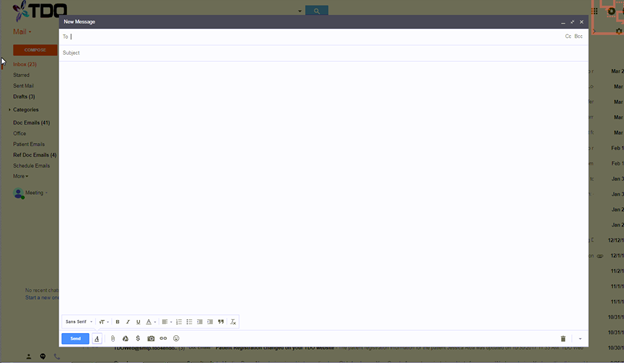
Click on the Attachment or Attach File button.
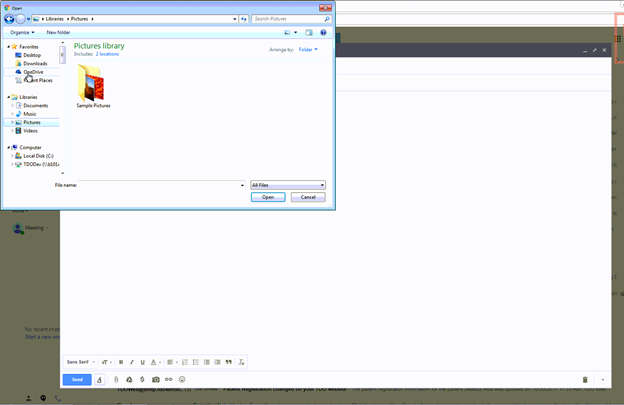
On File Name field right-click and then select Paste (or do CTRL+V) to paste the path in.
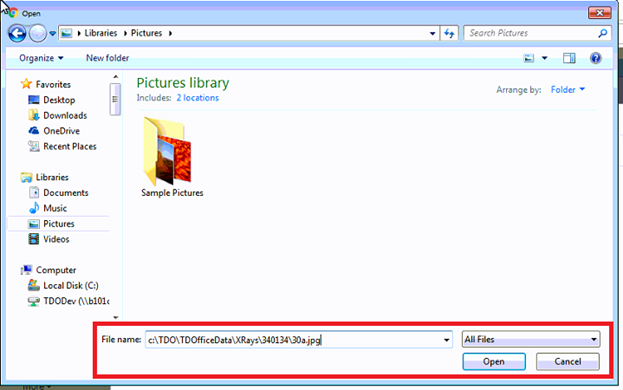
Click on Open.

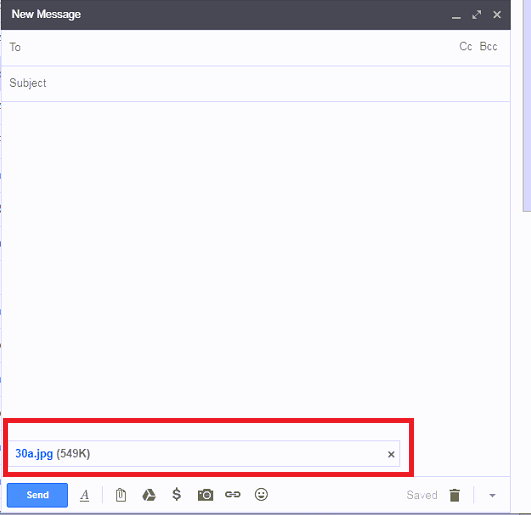
The image you previously selected in the Organizer will now be attached to this email message.
Video
Article ID: 695
Created: March 27, 2018
Last Updated: February 26, 2026
Author: TDO KB [web_admin@tdo4endo.com]
Online URL: https://kb.tdo4endo.com/article.php?id=695