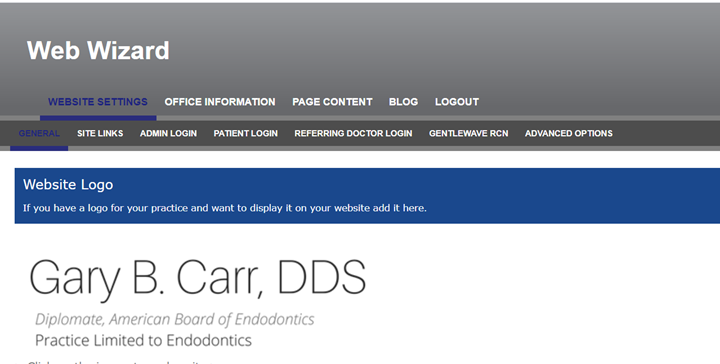
This article goes over how to add a new menu link to your practice website.
To make changes to your TDO Website, you may access the Web Wizard to add content to your new website yourself by typing in the search bar of your web browser:
yourwebsite address/wizard
e.g www.garycarrdds.com/wizard
You can find your username and password for the Web Wizard in TDO under Setup - Site Configuration - Edit Doctor Information - Web ID/ Web Pwd.
Note: The instructions in this article do not apply if your office is using a Wordpress website. For assistance in adding anew menu item to your Wordpress website, please reach out to the TDO Cloud team at clouddesign@tdo4endo.com
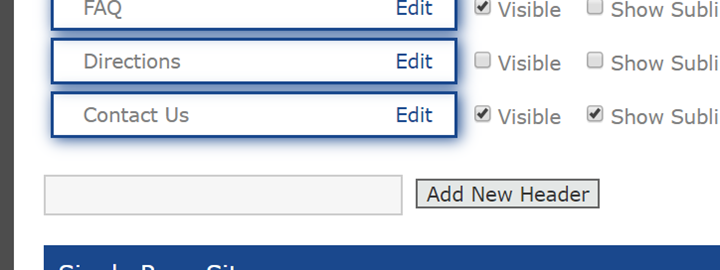
Click on Site Links – Add New Header- Type in your new header text and mark as Visible.
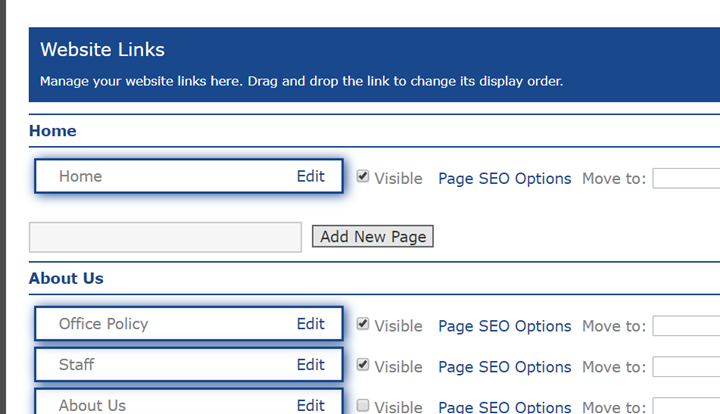
Scroll down to Website Links – Find the Main Header menu you would like to add a sub menu to – Go to Add New Page - Add text and mark as Visible.
Article ID: 801
Created: March 16, 2020
Last Updated: November 14, 2023
Author: TDO KB [web_admin@tdo4endo.com]
Online URL: https://kb.tdo4endo.com/article.php?id=801