Overview
Windows 10 is officially released on July 29th 2015.
We have tested TDO in the Windows 10 environment and it works fine. Workstations running Windows 10 will still need to follow our TDO Best Practices in order to function most efficiently.
Also, in just the same way that User Account Controls must be turned off on older version of Windows, it will be necessary for your IT to disable UAC in the registry in order to install TDO. For information on how to do that, click here
However, we do not suggest to update to Windows 10 until your IT professional has thoroughly checked the compatibility of all your other peripheral devices, drivers, and software programs with Windows 10. While TDO is compatible with Windows 10, there is the possibility that drivers for other devices might not be. If other manufacturers do not have the drivers for their devices for Windows 10 there will be no way for it will not work until one is released.
Important Notes
Please have IT verify all the items mentioned above prior to moving to Windows 10 as TDO Technical Support will not be able to help troubleshoot errors related to failing to follow these instructions. Also the steps below for adjusting the registry should only be handled by someone familiar with making changes to the registry.
Detailed Instructions
In order for the default Windows apps to function (Calculator, Microsoft Edge, etc) UAC must be enabled but there is a dilemma in that TDO typically requires UAC to be disabled. Here are the best steps to allow UAC to be enabled and still have TDO to function with Windows 10
Install TDO with UAC disabled in registry How to disable UAC in Windows Registry
After TDO is unlocked, a D-Word key must be created in order for TDO to function properly when UAC is reenabled:
Location: HKEY_LOCAL_MACHINE\Software\Microsoft\Windows\CurrentVersion\Policies\System
Created DWORD key:
EnableLinkedConnections
Assign the key value:
1
After this is done, you can reenable UAC from the Windows Control panel.
Reboot.
And now your Metro apps in Windows 10 should work with UAC enabled.
Compatibility Mode
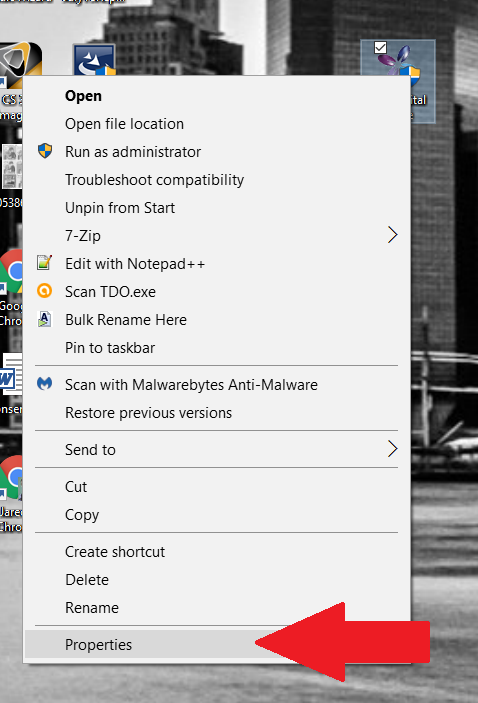
We have noticed that when UAC is reenabled, some applications have difficulty opening. We have found that a simple way of resolving this issues is to ensure that all your frequently used Programs are set to "Run as an Administrator"
We suggest following these steps for the TDO Application on Desktop as well as and of the other TDO Applications you may use (These applications include Autofix and TDO QB Sync and are located in C:\Program Files (x86)\TDOffice\Utilities)
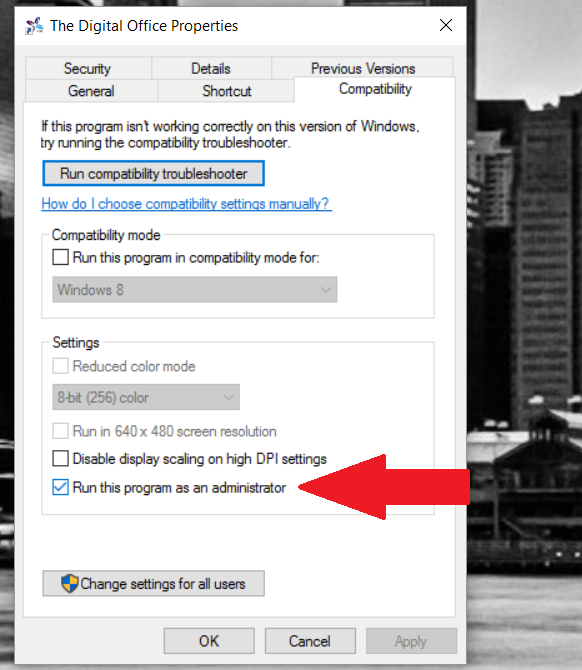
Click Apply.
Troubleshooting
We have seen in a handful of cases that opening applications in Windows 10 with UAC enabled might not function correctly. To resolve this, check with your IT that the application is set to Run as an Administrator.
Please note, if you select to roll back your Windows 10 installation there is a high probability that the process will corrupt your Windows scheduled task library which will impact your TDO Backup as well as other windows processes. You will need to work with your IT professional to research and resolve this in the way that best works for your individual practice.
Article ID: 340
Created: July 28, 2015
Last Updated: October 24, 2023
Author: TDO KB [web_admin@tdo4endo.com]
Online URL: https://kb.tdo4endo.com/article.php?id=340