
This article will go over how to help a patient reset their password for the online Patient Portal.
This page can usually be found at {https://securesite[XXX].tdo4endo.com/SetLogin.aspx} where [XXX] is replaced with the corresponding ID for your Web Services portal.
They can then enter their email address (the one where they received the letter), and click Submit to receive an automated email with a password reset link, which will take them to a page that will look like the one below.

If the patient is unable to receive the verification email, they can request a reset code from you.
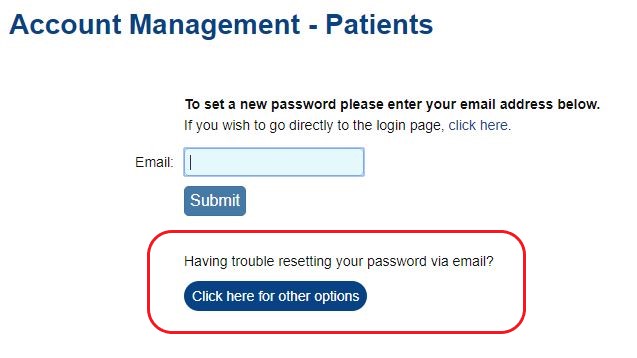
After clicking on the button for other options, they can request a code from you.
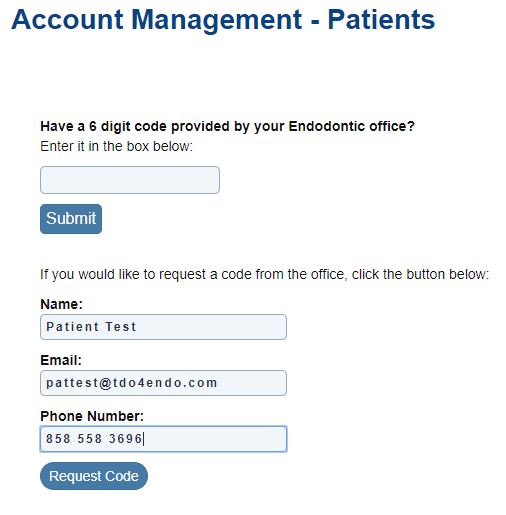
An email will be sent to the same email accounts that receive other notifications from the login pages. The email will list the information that the patient entered along with instructions on how to generate the reset code for the patient.
To generate the reset code, go to the Admin login area of the website.
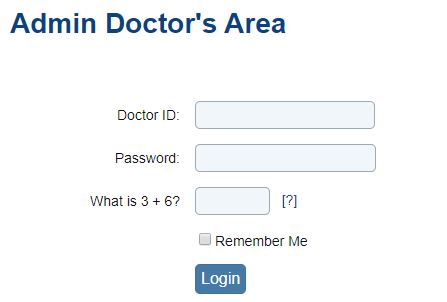
Once logged in, search for the patient.
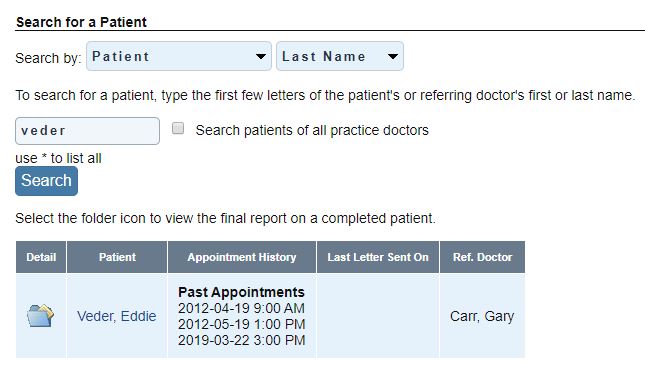
After selecting the patient, go to the Login Settings page.
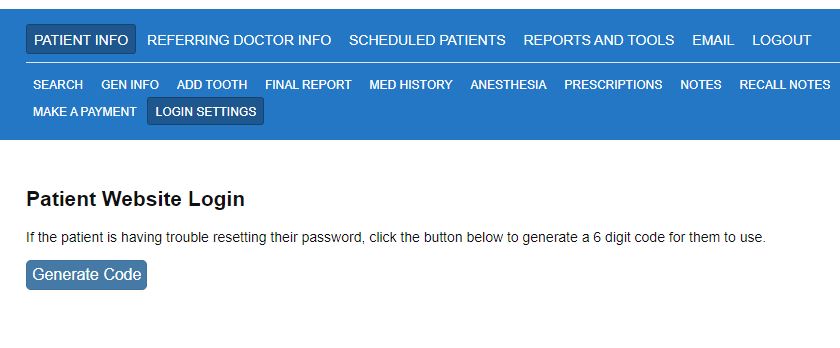
Click on Generate Code.
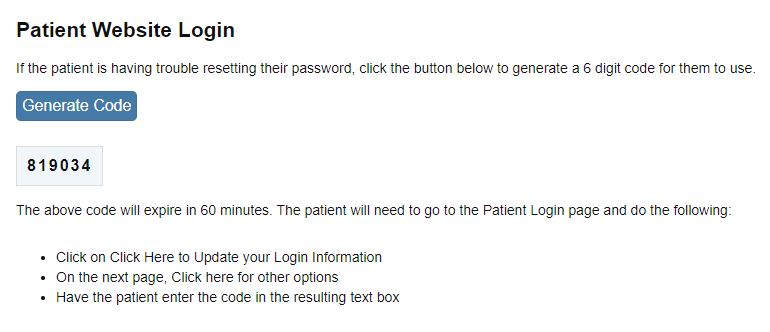
The patient can go back to the login page, click on the button for other options, and then enter the code.
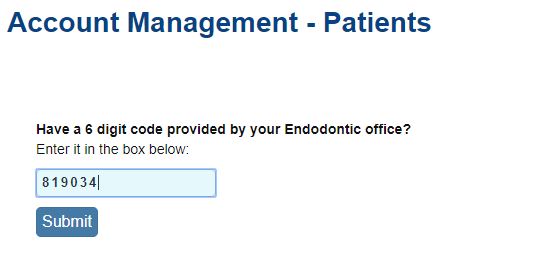
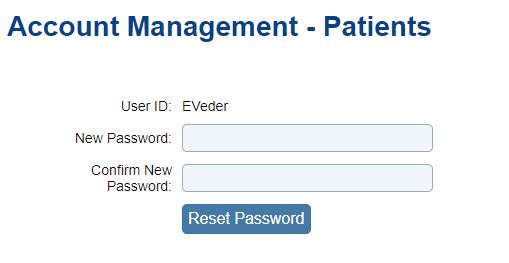
Due to this code not being automatically sent, you will need to notify that patient of their code. After entering the code, the patient will be able to reset their password.
Article ID: 354
Created: November 17, 2015
Last Updated: October 26, 2023
Author: TDO KB [web_admin@tdo4endo.com]
Online URL: https://kb.tdo4endo.com/article.php?id=354