[v12.450f and above] TDO Payments - Processing payments & refunds
Requirements
- TDO version 12.450f or newer
- ValPay acct setup
- Pin Pad terminal(s) on site
- Password-protected internet network
- Ethernet Cable. Note: Users will need one Ethernet cable per device (terminal) ordered
- Internet connection
If you are having issues logging into the ValPay portal, please contact TDO support.
Processing Payments with a credit card
- Go to Ledger>Receive Payment> Enter the amount to pay>Select "Credit Card as the the "Type of Payment"
- The "Use TDO Payment Services" box should be displayed. The "Use TDO Payment Services" box should be checked by default
- The "Credit Card Manual Entry" box should be displayed but NOT checked
- The Credit Card Type field should be no longer visible (for ValPay only)
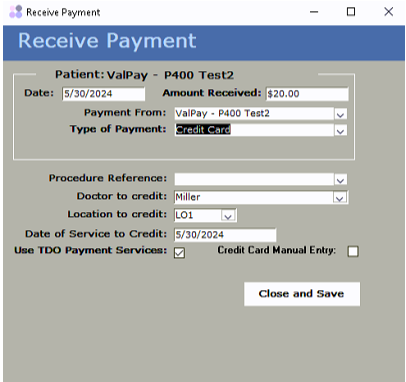
- Select the procedure Reference, if any > Verify the Dr to credit is the right one > Verify the location to credit is the correct one > Then click Close and Save
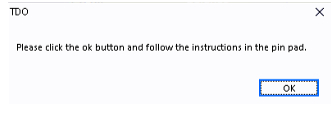
- Click OK on the popup
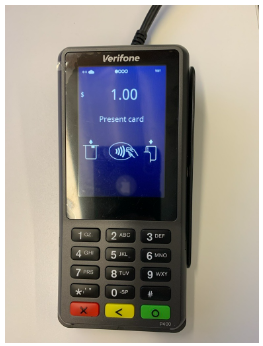
- The amount to be processed should be displayed in the Pin Pad terminal
- Process the cc payment in the pin pad by inserting the credit card in the pin pad
- Once the CC payment is successfully processed , a popup will come up on the screen indicating that the "Transaction was Approved"
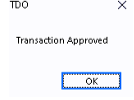
- Click Ok on the popup
- The Payment Receipt should be displayed
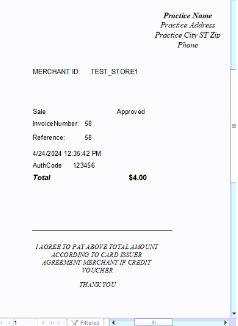
- Close the "Receipt" window
- Back in the Ledger, the payment should be recorded as a separate line item. Amount should be in the Credit Column. Running Balance should be updated. A Reference number should be created (this is a link to the
- receipt)
- Click on the Reference Number for the in the Ledger item.The receipt should be displayed
- Go to Main>Front Desk Tools>Credit Card Receipts. All the transactions made with Credit Cards should be listed
Processing Payments (Manual Entry) or Mail Order/Telephone Order (MOTO)
Follow the steps 1 through 4 from Processing Payments with a credit Card then follow the steps below:
- Select the procedure Reference, if any > Verify the Dr to credit is the right one > Verify the location to credit is the correct one
- Check the "Credit Card Manual Entry" box
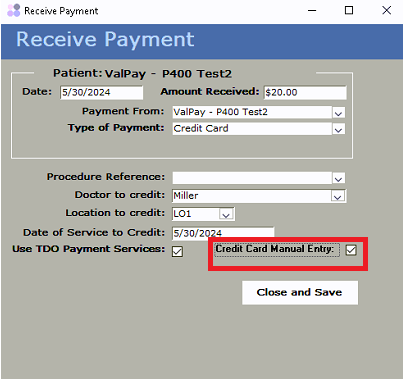
- Click “Close and Save”
- The amount to be processed should be displayed in the Pin Pad terminal. The "Enter Credit Card Number field should be displayed on the terminal.
- Enter the Credit Card number on the terminal
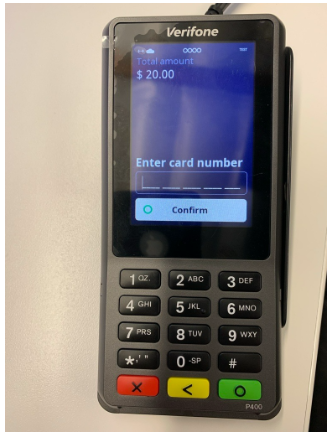
- Click the "Confirm" button
- Enter the expiration date
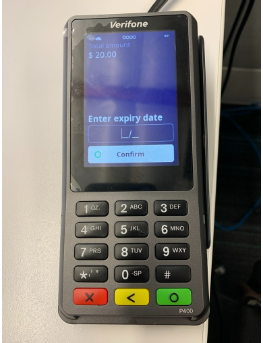
- Click the “Confirm” button
- Enter the Card Security code
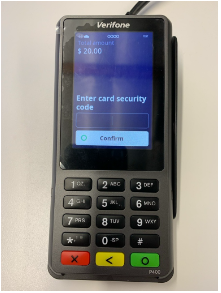
- Click the ‘Confirm” button
- The “Approved” message should be displayed on the terminal
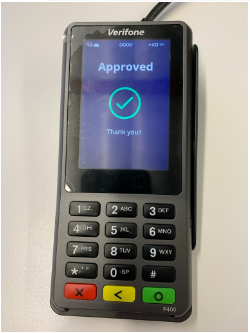
- A popup will come up on the screen indicating that the "Transaction was Approved"
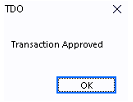
- Click Ok on the popup
- The Payment Receipt should be displayed
Partial authorization
To reduce the number of transactions that are declined due to insufficient funds, allowing partial authorization has been implemented. With this, a request is sent to the issuer to authorize the available amount when the card's balance is not enough for the full amount. Users can then let the patient pay the remainder with another card or in cash.
When the issuer supports partial authorizations and the transaction succeeds, the terminal shows “Approved” plus a warning that mentions how much was paid, out of the requested amount.
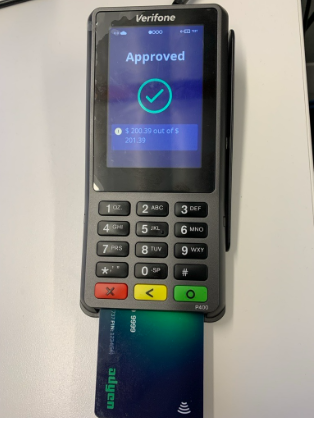
- Because the transaction is approved, the warning may be overlooked, and the patient may leave without having paid the full amount. Therefore, it is very important to ensure that the staff is aware and let the patient know that there is an amount remaining to be paid.
- In TDO, a popup message should be displayed indicating that a partial amount was authorized to alert the staff and collect the remaining amount.
- In TDO12's patient ledger, the system will automatically record online payments processed through the patient portal under the Doctor based on the last Doctor that a valid transaction was assigned to.
- Valid transactions include credit adjustments, and debit adjustments
- Ledger items such as Ledger Notes where the entry is posted to Dr. 0 will fall under step a
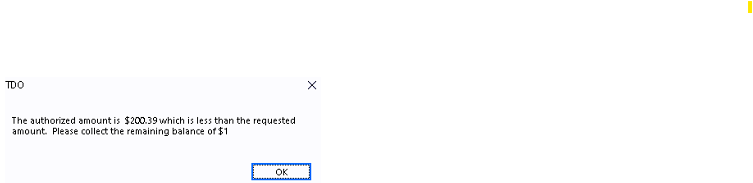
- In the Ledger, the record of the payment should display the allowed amount.
Tokenization
This feature is implemented in 12.453f and newer.
Initial Tokenization Setup
Note: In order to configure the tokenization, there should be an initial payment made.
- Go to Ledger>Receive Payment> Enter the amount to pay>Select "Credit Card as the "Type of Payment".
- The "Use TDO Payment Services" box should be displayed. The "Use TDO Payment Services" box should be checked by default

- The "Credit Card Manual Entry" box should be displayed but NOT checked

- The Credit Card Type field should be no longer visible (for ValPay only)
- The “Initialize Recurring Payment” box should be displayed
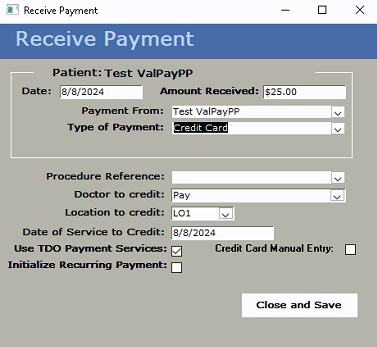
- Check the “Initialize Recurring Payment” box
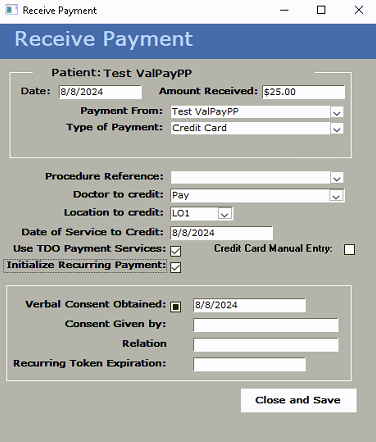
Note: it is required by Adyen to get a verbal consent (as a minimum) to use the tokenization from whoever is making the payment
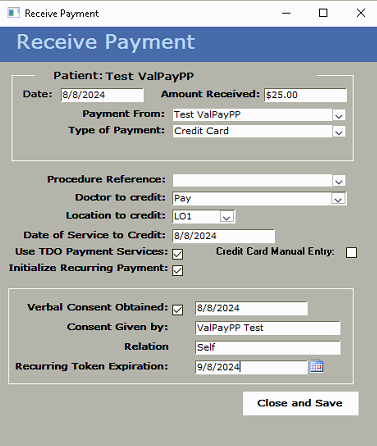
- Check the “Verbal Consent Obtained” box
- Enter in the name of the person giving consent
- Enter the relation
- Enter the “Recurring Token Expiration” date
-
- If using MOTO (aka manual entry) please check the “Credit Card Manual Entry” box before clicking the “Close and Save” button.
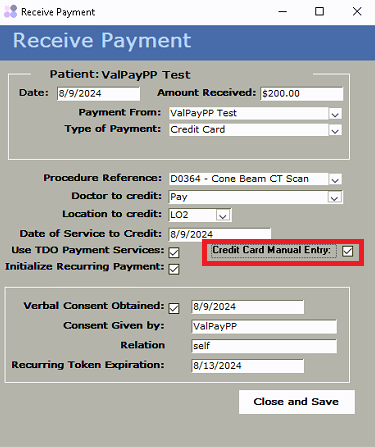
- Click “Close and Save”
- Click “OK on the Popup
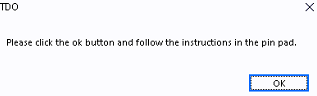
- Process the payment using the terminal
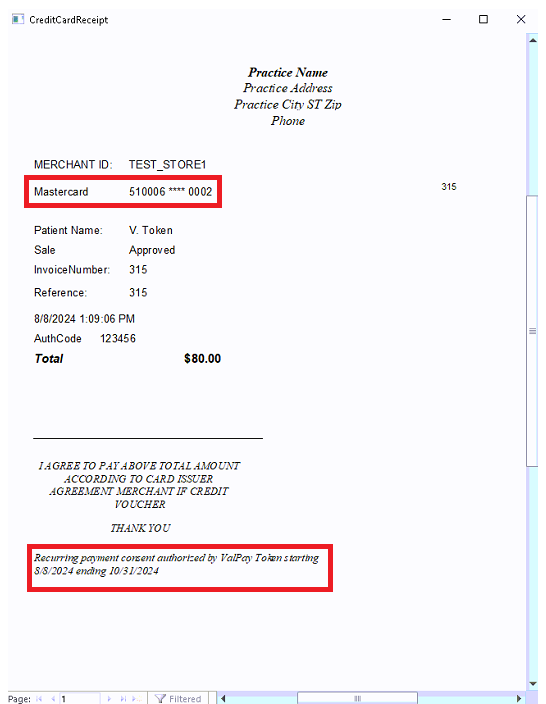
- Once the transaction is approved, the receipt should be displayed.
Note: The receipt should have the credit card number partially masked. Also, a note indicating that the recurring payment was authorized should be displayed at the bottom of the receipt
Note: once the stored credit card information has reached the expiration date, it is no longer visible in the list of credit cards.
Making a payment using the Recurring Payment
This feature is implemented in 12.453f and newer.
- Go to Ledger>Receive Payment> Enter the amount to pay>Select "Credit Card as the "Type of Payment".
- The “Use Recurring Payment” box should be displayed
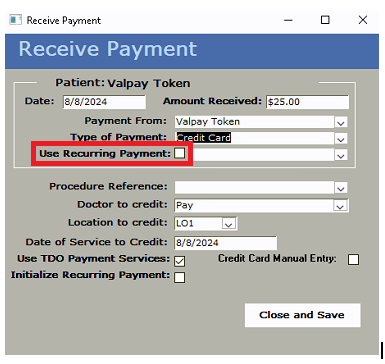
- Check the 'Use Recurring Payment' box
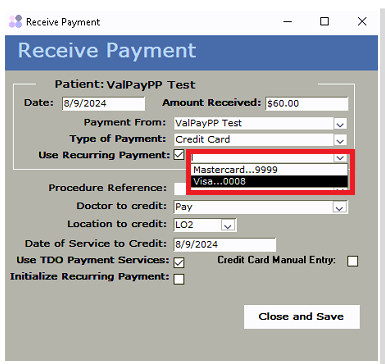
- Select the credit card on file from the dropdown
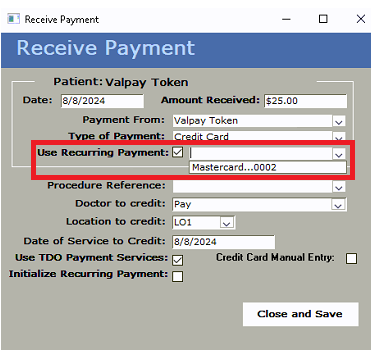
Note: Patients can have more than one credit card stored as long as they are properly configured, and an initial payment is made.
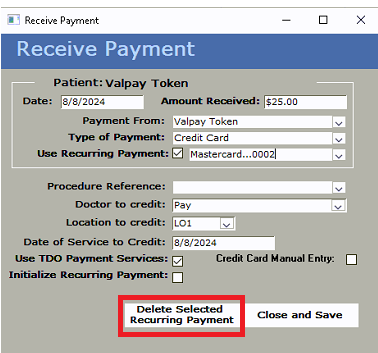
- The “Delete Selected Recurring Payment” button should be displayed. This button is available in case the user wants to delete the recurring payment configured previously
- Click Close and Save
- If the transaction is approved, this popup should be displayed. Note: the payment should be made automatically using the credit card on file
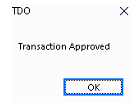
- Click 'OK' on the popup
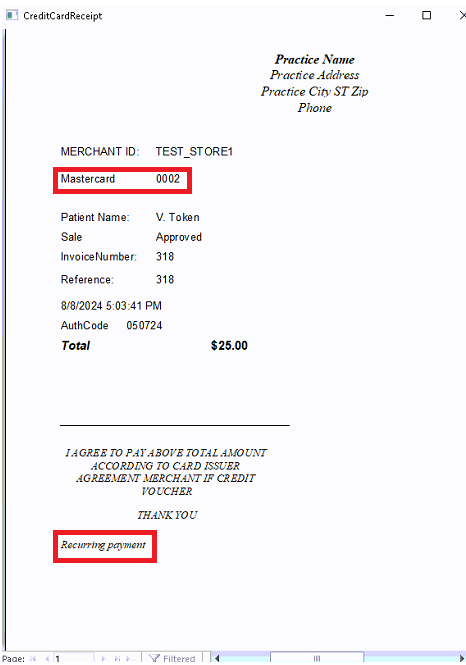
- The invoice should generate. Note: the last 4 digits of the card number should be displayed on the invoice and there should also be a note at the bottom stating that the payment was a recurring transaction.
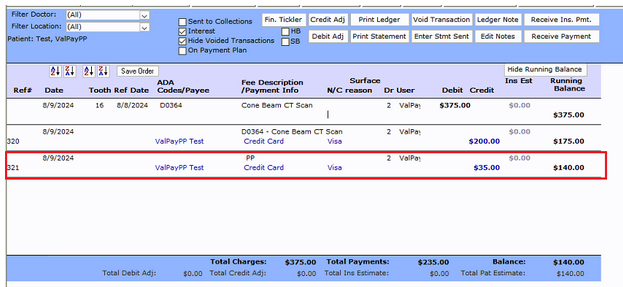
- In the ledger, the payment should be recorded as a separate line item. The amount should be in the Credit Column. Running Balance should be updated. A reference number should be created (this is a link to the receipt). The description of the payment should be "PP" which is an abbreviation of "Payment Plan" which is also known as "stored payment (token)"
Deleting a recurring payment
This feature is implemented in 12.453f and newer.
- Go to Ledger>Receive Payment> Enter the amount to pay>Select "Credit Card as the "Type of Payment".
- The “Use Recurring Payment” box should be displayed
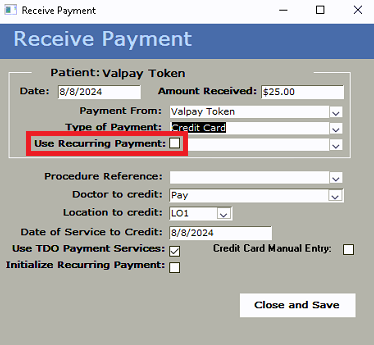
- Check the “Use Recurring Payment” box.
- Select the credit card on file from the dropdown
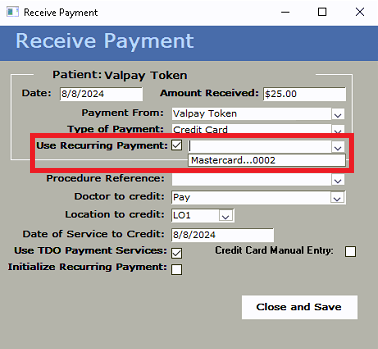
- The “Delete Selected Recurring Payment” button should be displayed. This button is available in case the user wants to delete the recurring payment configured previously.
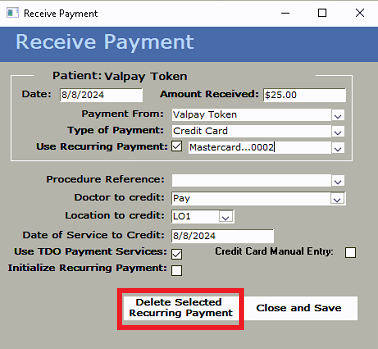
- Click “Delete Selected Recurring Payment” button
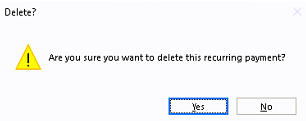
- Click “Yes” on the popup to delete the selected recurring payment
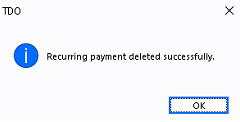
- A popup should be displayed confirming that the recurring payment has been deleted. Note: a record of the recurring payment is still available in the “PatientPaymentToken” table.
Pay-By-Text
With “Pay-by-text”, users will be able to send an automated SMS payment request to patients who have outstanding balances.
This feature is implemented in 12.453f and newer.
Requirements:
- Cloud Services
- “Comms +”
- An initial point-of-sale payment with tokenization parameters must be made. See Tokenize point-of-sale payment for configuration.
- The patient chart must not have any open insurance claims in order for the patient to show up in the batch results
How it works
- Make sure there is a Valid Reply configured in Communication Menu>Valid Reply Designer. Example:

- Make sure there is an SMS template with an allowed reply configured.
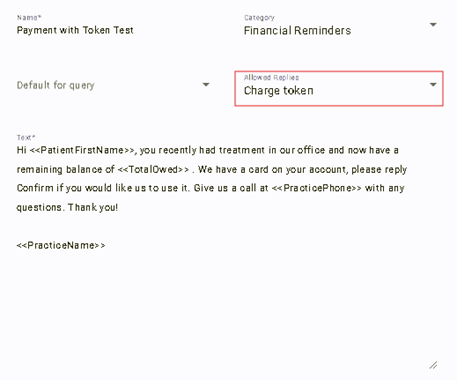
- Send a text message either using Single, Batch or Automated SMS.
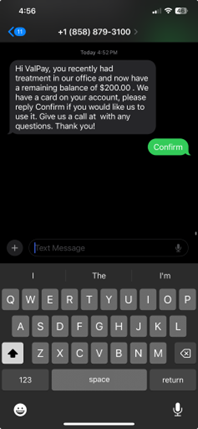
- Once the SMS is received, the patient can reply using the ‘Valid reply’ specified.
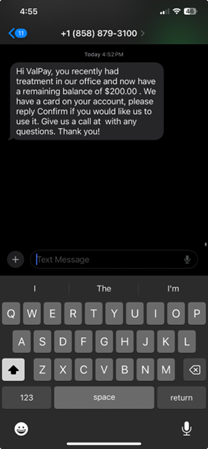
- Once the patient replies to the SMS, the Valid Reply will trigger the payment action using the credit card on file.
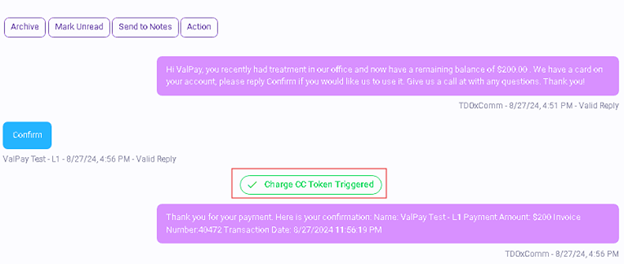
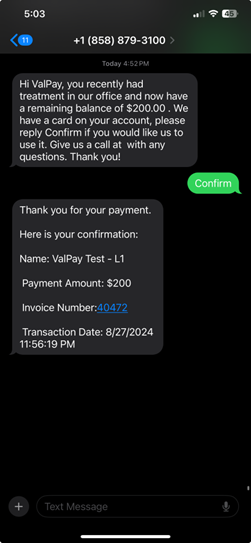
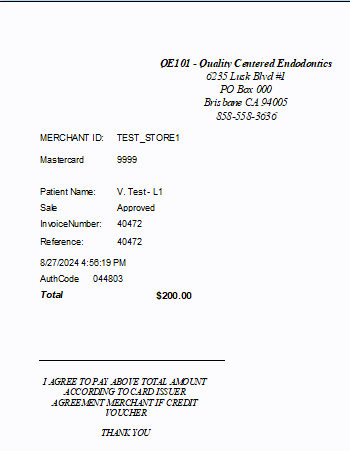
- A text message of the receipt will be sent with details of the payment.
- A Payment confirmation will also be sent by email to the patient.
- A Payment notification will be sent to the office (email address configured in Edit Doctor Information).
- In TDO, the online payment will be recorded in the Ledger with a link to the receipt.
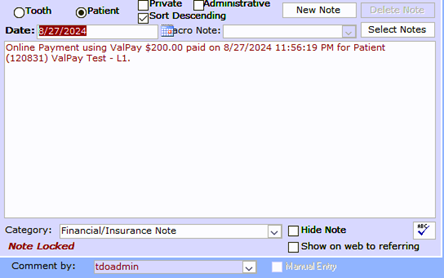
- A (locked) note will be generated in the Patient Notes page indicating that an online payment has been processed.
Pay-by-Link
Users can now send a personalized link to patients to pay their balance without logging in to the patient’s portal. This link will redirect the patient to enter the credit card number
This feature is implemented in 12.453p and newer.
Requirements:
- Cloud Services
- “Comms plus”
How it works:
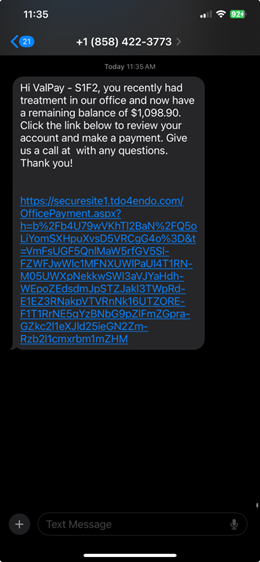
- Make sure there is an SMS template with the token: <<ValPayByLink>>. Note: the URL link is only valid for 30 days.
- Send a text message either using Single, Batch or Automated SMS
- A copy of the sent SMS should be displayed in the “Sent” box in comms. This SMS should displayed the URL link to the patient portal
- Once the SMS is received, click on the URL link. Note: the token created in the url contains the patient's ID so it should always line up correctly. The URL link is valid for only 24 hrs.
- Patients with Balance and Pay token - must have CC Tokenized on file for patients with a balance to show.
- The “Make Payment” window should be displayed
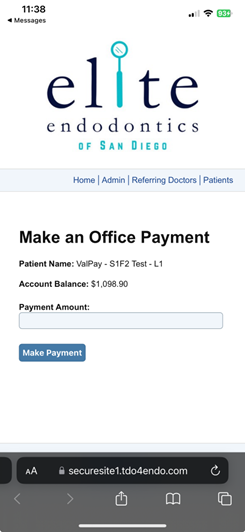
- Enter the amount to pay
- Click on “Make Payment”
- Enter the Credit Card information
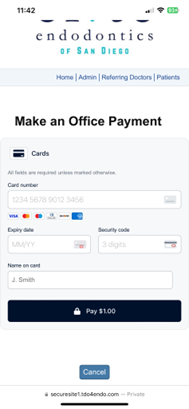
- Click Pay $XXX.XX
- Once the payment is processed, the payment details should be displayed
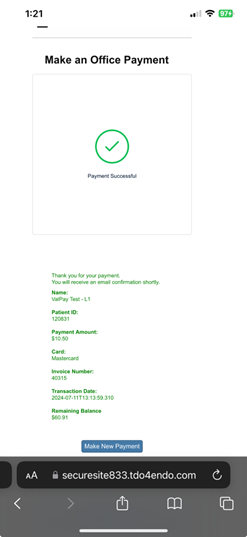
- A Payment confirmation will also be sent by email to the patient
- A Payment notification will be sent to the office (email address configured in Edit Doctor Information)
- In TDO, the online payment will be recorded in the Ledger
- A (locked) note will be generated in the Patient Notes page indicating that an online payment has been processed.
Processing refunds
Note: If you have the TDO/Quickbooks Sync, please skip to the next section: Processing Credit Card Refunds with the Quickbooks Sync
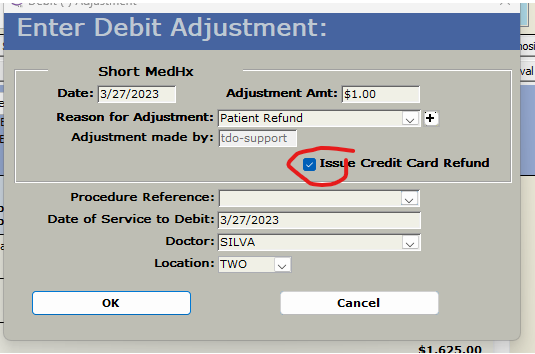
Go to Debit Adjustment and follow the same standard steps as before with other credit card merchants
Processing Credit Card Refunds with the Quickbooks Sync
If you have the Quickbooks sync in TDO, it is very important to use the issue check in QB box in TDO any time money is moving. If you forget to click the box it will not generate the debit in the checking account that is required for the balance to match. NEVER create a check in QB because it is missing after the sync. That creates a duplicate debit on the patient chart and will generate a mismatch. Transactions created in QB do not transfer back to TDO.
Please make sure that both ISSUE CREDIT CARD REFUND and ISSUE CHECK IN QUICKBOOKS are checked when issuing a refund.
Please refer to the following article which explains issuing credit card refunds with the TDO/Quickbooks Sync:
Issue Check in QuickBooks
Processing Credit Card payments for Virtual Insurance Cards
Go to Ledger>Receive Insurance Payment, or go to Insurance Tools>Receive Payment (for Bulk payments)
Insurance - Bulk Payment Processing
Article ID: 975
Created: July 12, 2024
Last Updated: March 13, 2026
Author: TDOKB2 [IT@tdo4endo.com]
Online URL: https://kb.tdo4endo.com/article.php?id=975