How to Receive Payment and Issue Refund
Estimated Reading Time: 1 MinutesOverview
TDO allows users to document payments to the ledger and post refunds.
Detailed Instructions
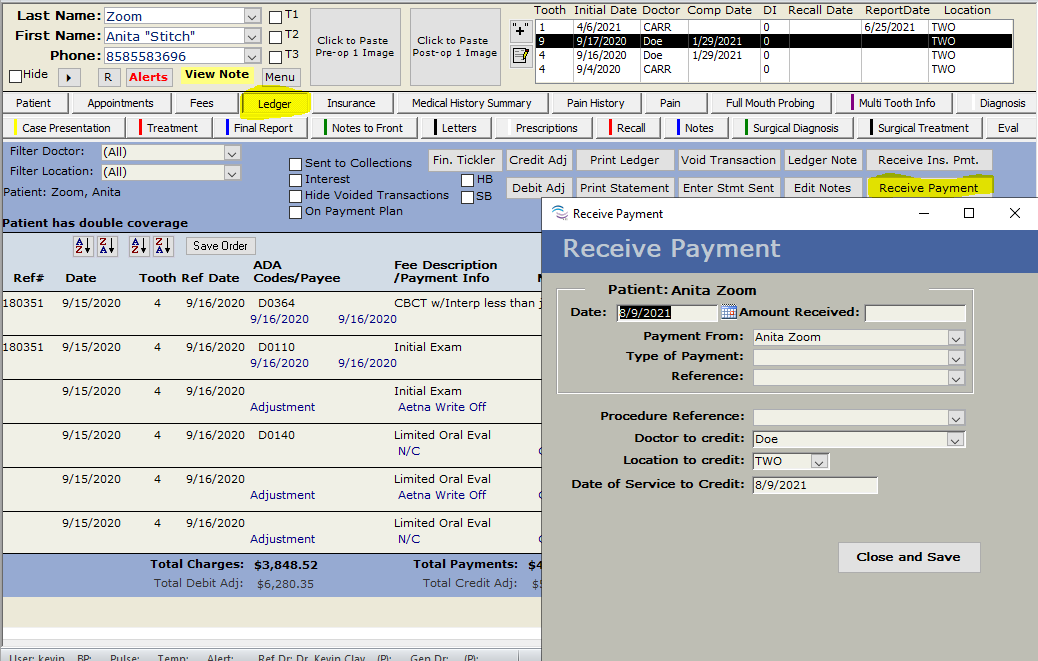
Ledger>Receive Payment
Amount Received: Enter the amount being received
Payment from: Patient (Default option) or Patient Guarantor if one is entered on the patient tab.
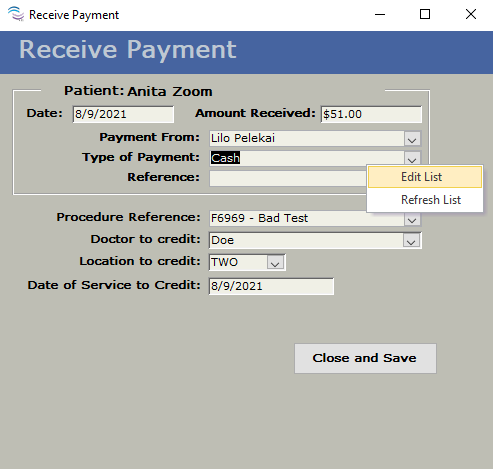
Type of Payment: Check, Cash, Credit Card, Debit/ATM/E-Check are all default payment types.
Additional options can be added by right-clicking this field and selecting Edit List to add an option.
Reference a list will only populate for 2 items
- Credit Card
- Type of Credit Card: Visa, Mastercard, Discover, and American Express.
- Check
- Check Number
- Type an additional note if desired
- Test Payment
- Procedure Reference
- Not Required
- Can reference a Specific Procedure for payment
- or add a brief notation like 'Test Payment'
- Doctor to Credit
- Which Doctor was assigned to the patient to receive the payment
- Location to Credit
- Location of where the patient was treated, and which location is receiving the payment
- Date of Service to Credit
- Date needs to match the top Date to show when the transaction is taking place
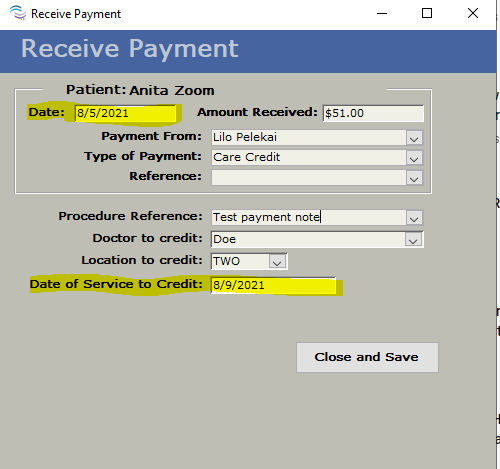
- Close and Save
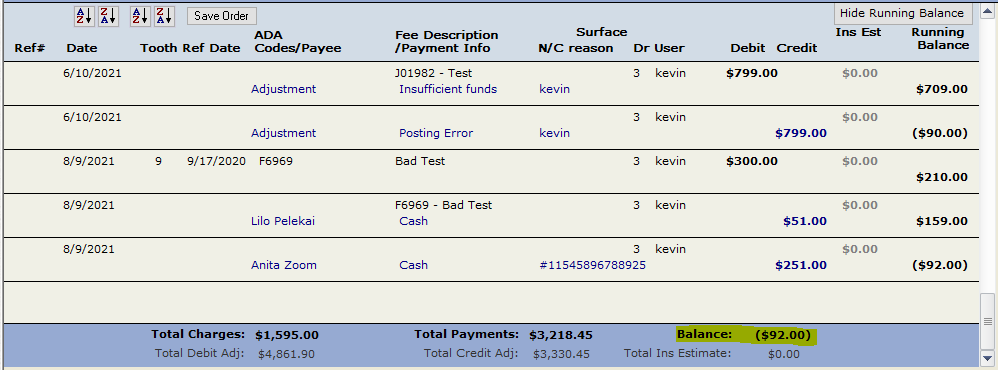
Payment will now be shown on your Ledger
Reimbursement Check Notification
If you post a payment that is more than what shows on the ledger for the patient's balance, you will receive a notification asking if you wish to write and post a Refund Check for the difference.
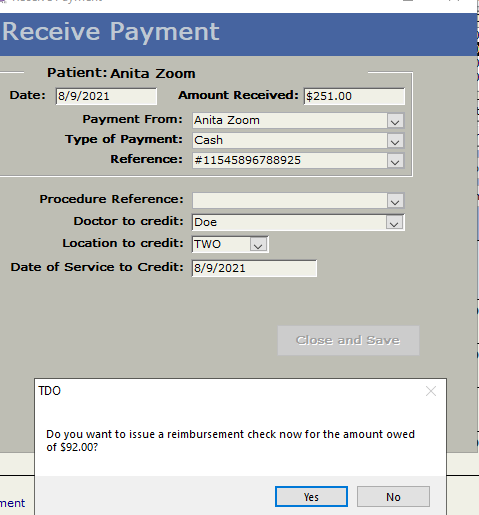
If you select 'Yes', an automatic Debit Adjustment for the difference will be added.
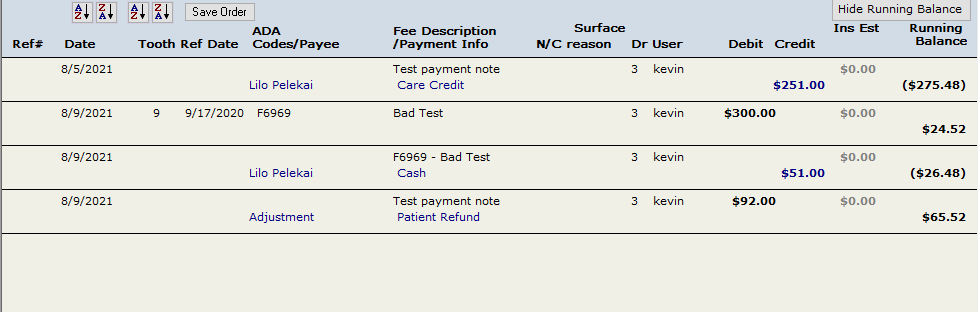
If you Select 'No', the Payment will be added, and a balance will show of what is still owed.