Creating a template for Dymo Label Printer
Estimated Reading Time: 1 MinutesOverview
This will show how to create a template in Letters for the Dymo Label Printer.
Detailed Instructions
Open Letters Module
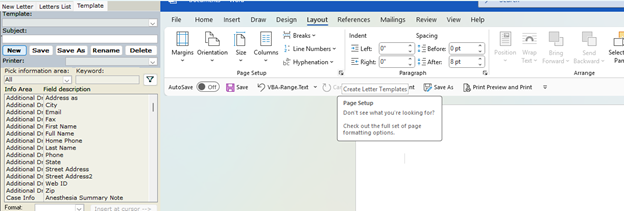
Click the Template Tab and then New Template
Under Layout, expand the Page Setup Option
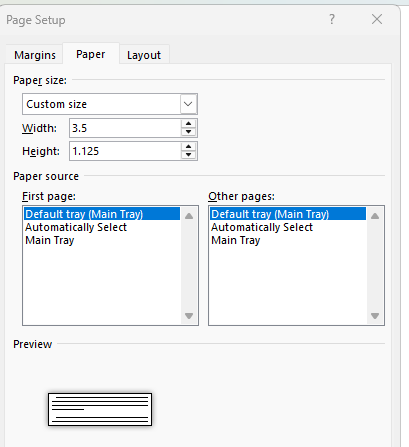
On the Paper tab, select custom size and enter the width and height measurements of your label (most common is 1 1/8 by 3 1/2)
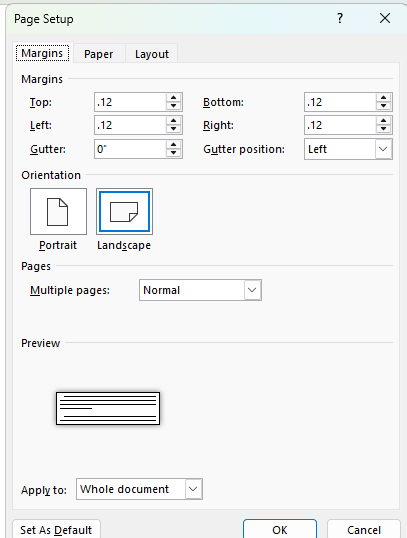
On the Margins tab, set all margins to .12
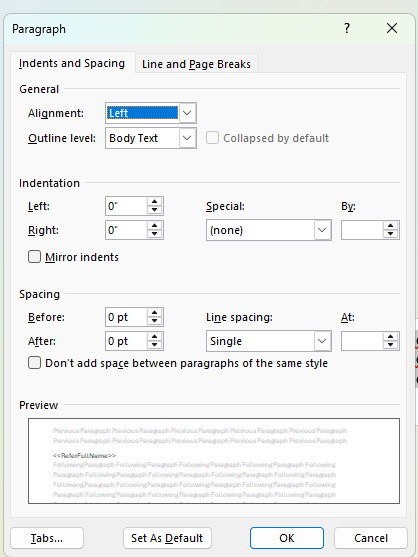
Select the tokens you wish to include on the label and set your paragraph to be single-spaced with no space before or after
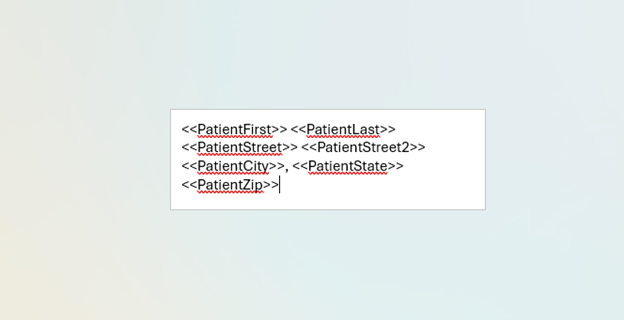
Patient Label Example:
Referring Doctor Label Example:
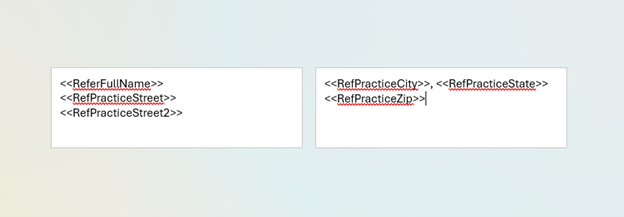
(Showing on the preview as 2 labels is ok, the tokens will shrink down when the data pulls)
Select the Dymo printer as default for this template (please note that the printer must have the same name on all computers for the default setting to work)
Select Save As and name the label
On the new letter tab, click on Options and select your new label template under the drop-down
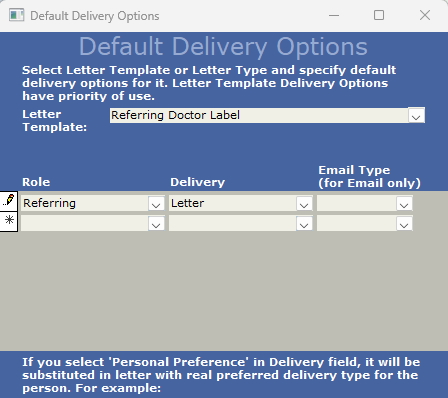
Set role to patient or referring doctor and delivery as letter