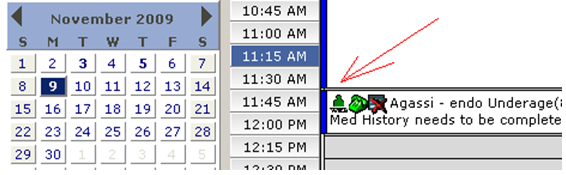
Web Registration Calendar Icon
Estimated Reading Time: 1 MinutesOverview
The Web Registration Icon can be used to identify which patients have completed the Web Registration prior to their appointment date.
Configuring TDO
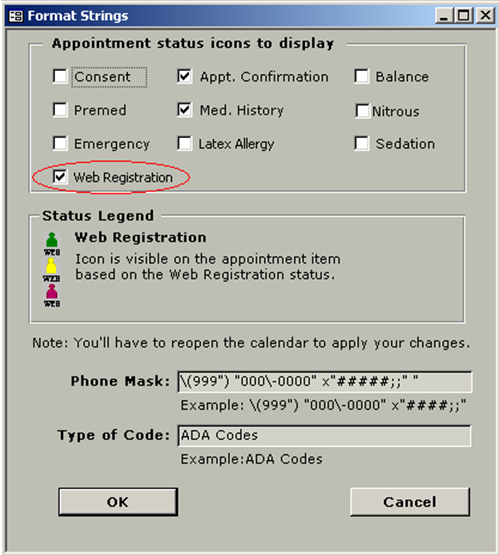
From the menu [Program Setup > Format String], select “Web Registration” in Appointment status icons to display:
Letters
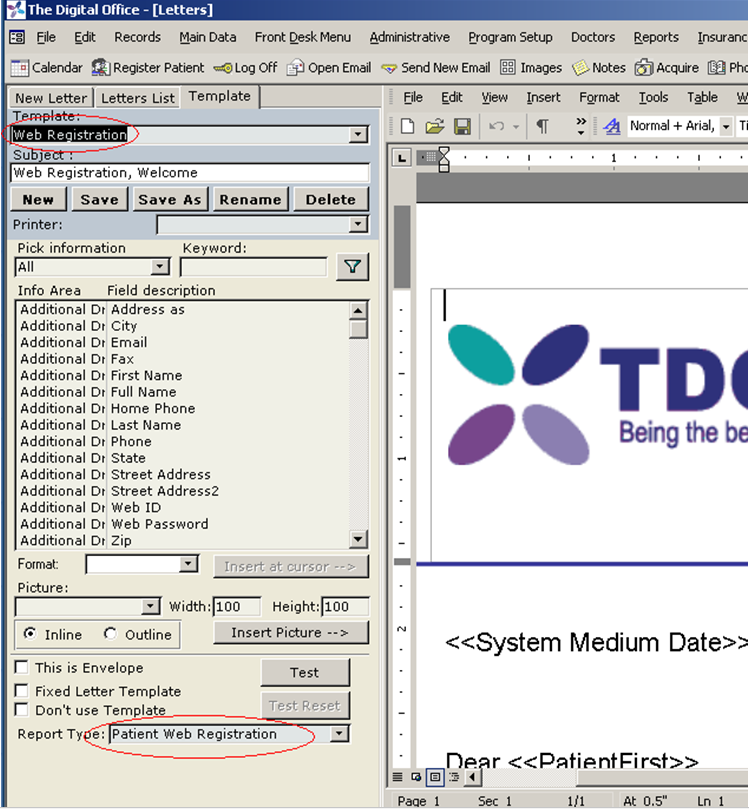
Make sure to set a letter as “Patient Web Registration”. In this example, the template “Web Registration” has been set as “Patient Web Registration”:
Web Registration Icon in Calendar
The new icon will be displayed when certain conditions are met:
- Web registration letter sent to the patient.
- Appointment is confirmed and
- Patient clicks “Save” button in the web/infograbber.
No icon
Let’s suppose for a new patient, an appointment is created. No web registration icon is displayed yet, because the web registration letter has not sent. Therefore, the appointment will be as shown below.
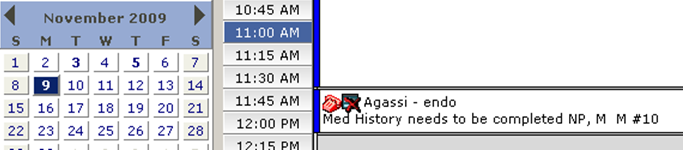
Red icon
Go to Letters and send a Web Registration Letter.
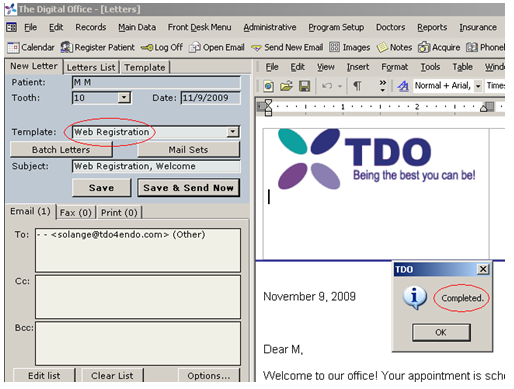
Now the appointment displays the web registration icon in red.
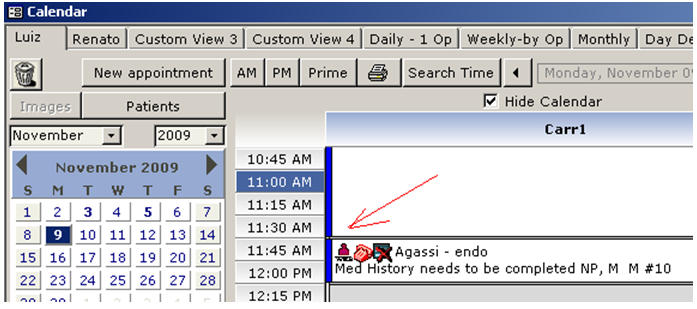
Yellow icon
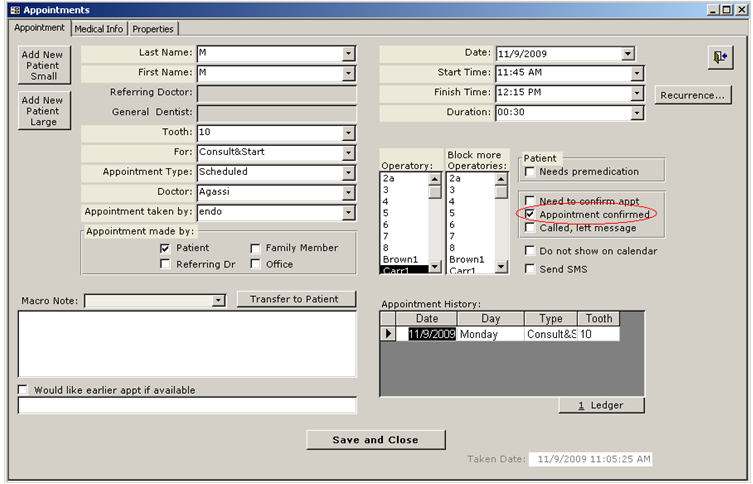
Once the appointment is confirmed, the web registration icon becomes yellow.

Green icon
Now, let’s suppose the patient fills out the web form and clicks the “Save” button in the Patient Registration page.
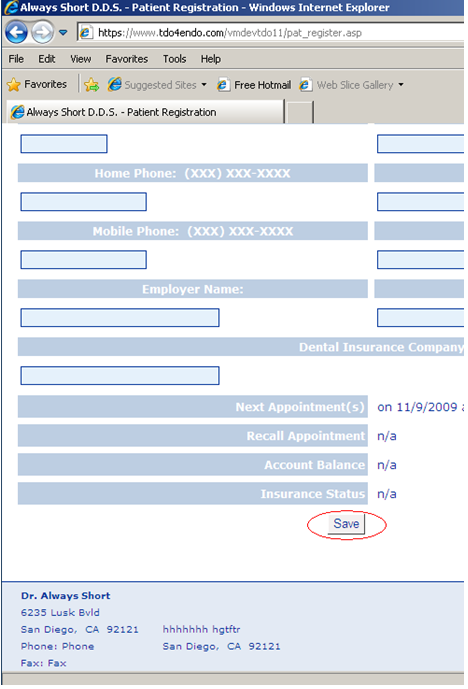
The web registration icon is now green.