TDOS How to Use credit card Surcharging
Estimated Reading Time: 4 MinutesHow to Use Credit Card Surcharging
Overview
Surcharging adds a percentage fee to credit card payments so the practice can recover card processing costs. Debit and prepaid cards are never surcharged, and one rate applies to every credit card brand that can be surcharged.
Surcharging is set per practice location and works in three places:
|
Where the patient pays |
How the surcharge is disclosed |
|---|---|
|
Patient portal (online) |
The patient ticks a surcharge checkbox before paying |
|
Pin pad terminal |
The pin pad shows the surcharge and the patient confirms or cancels |
|
Saved credit card on file |
Staff tick a checkbox confirming they told the patient about the surcharge |
The surcharge is rounded to the nearest cent. For example, a 3.5% rate on a $100.00 payment charges $103.50.
Turning on surcharging
An administrator turns surcharging on once per location. Users without settings rights cannot see or change it.
- Go to Settings > Payment Processors.
- Choose the practice and location, then open the Surcharging tab.
- Under Surcharge rate, type the rate as a percentage (for example,
3or3.5), then click Save Rate.- The rate must be greater than 0 and less than 100%, with at most two decimal places.
- Check your state's and card networks' limits first. TDO does not set, check or enforce a maximum rate.
- Read the Surcharge terms. Click View full terms to see the complete text.
- Switch on Enable credit card surcharging. The status badge changes from Not enabled to Enabled.
- Restart every pin pad at that location. Terminals can take up to 3 hours to pick up a change on their own.
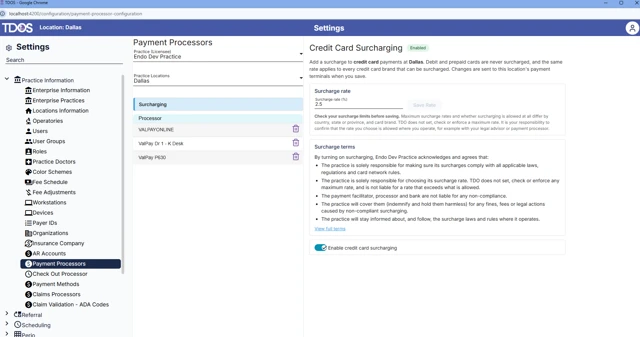
Saving applies the same rate to every ValPay terminal and to online payments at that location. Other locations are not affected.
To change the rate: enter the new rate, click Save Rate, then restart the pin pads.
To turn surcharging off: switch off Enable credit card surcharging, then restart the pin pads. New payments are no longer surcharged.
Taking a surcharged payment
Patient portal (online)
- The patient opens the patient portal and pays with a credit card.
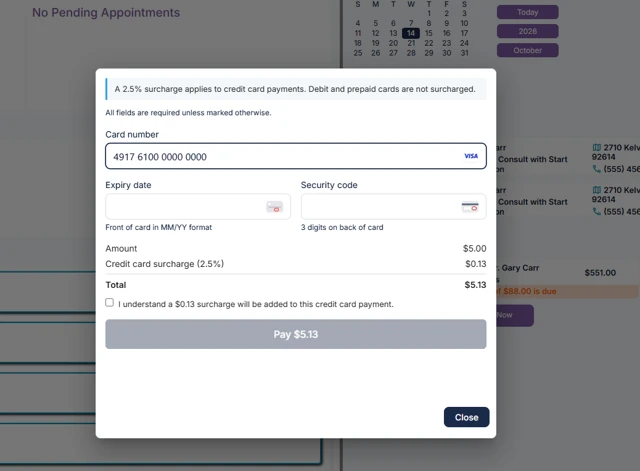
- A surcharge checkbox appears. The patient must tick it to continue; payment is blocked until they do.
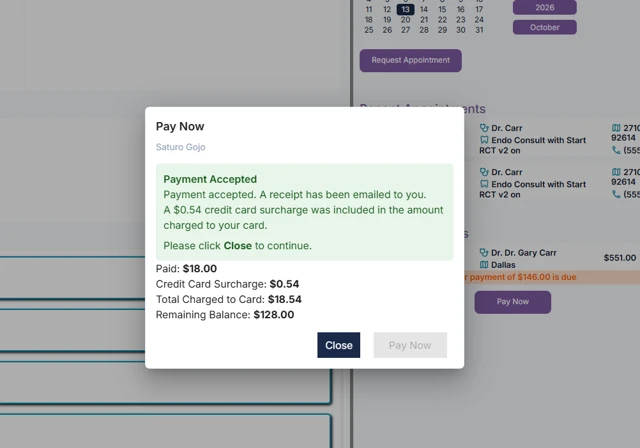
- The confirmation shows the payment amount, the Credit Card Surcharge and the Total Charged to Card.
Pin pad
- In the payment screen, choose the payment processor and select the Pin Pad option.
- Enter the amount and have the patient tap, insert or swipe their card.
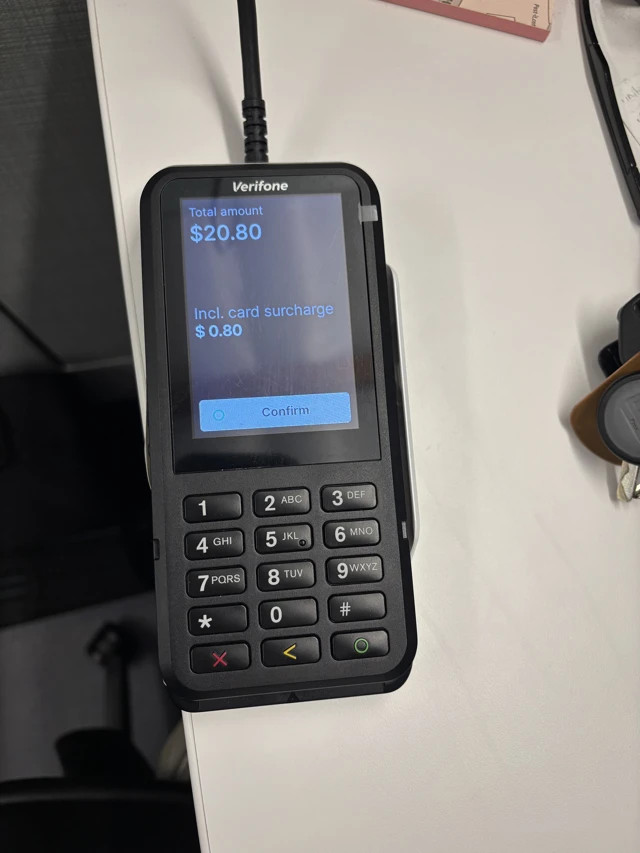
- If it is a credit card, the pin pad shows the surcharge amount. The patient presses Confirm to accept it, or cancels.
- Some terminals ask the patient to tap the card again. Others go straight to Approved.
- The payment appears in the ledger. Refresh the page if you do not see it.
If the patient cancels on the surcharge screen, no charge is made. The transaction log shows "Payment Declined - card not charged (Shopper cancelled)" with $0.00.
Saved credit card on file
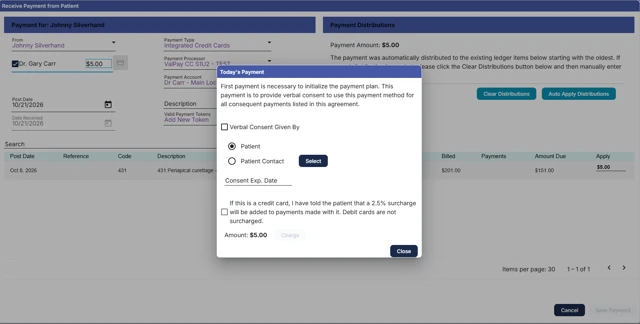
- Saving the card. When a card is saved with surcharging on, a screen asks whether it is a credit card.
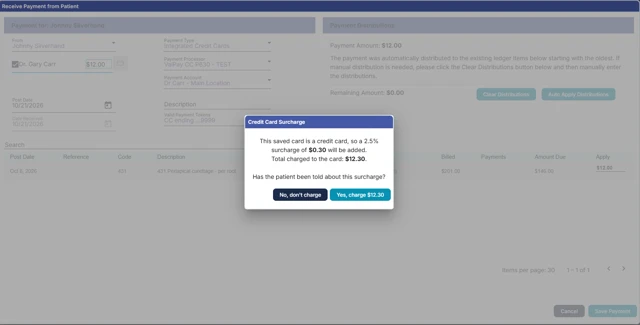
- Charging the card later. A screen confirms it is a credit card and shows the surcharge.
- Tick the checkbox: "If this is a credit card, I have told the patient that a X% surcharge will be added to payments made with it. Debit cards are not surcharged." The Charge button stays disabled until it is ticked.
- Click Charge, then distribute the payment as usual.
Cards saved before surcharging was released are not surcharged. To surcharge one, delete the saved card and save it again.

Receipts, ledger and refunds
Receipts and transaction logs list the surcharge on its own line, for example Payment $15.00 / Surcharge $0.52 / Total $15.52.
In the ledger, a surcharged payment posts the base payment plus two surcharge lines: a Surcharge debit adjustment and a matching surcharge payment. They cancel out, so only the base payment reduces the patient's balance. Payment Item Details shows CC Surcharge and Card Total.

Refunds:
|
Refund type |
Is the surcharge refunded? |
|---|---|
|
Full refund |
Yes, the surcharge is refunded with the payment |
|
Partial refund |
No, only the amount entered is refunded |
A cancelled pin pad payment shows one voided line in the ledger, visible only when Hide Voids is unchecked. It does not affect the balance.
Messages you may see
|
Message |
What it means |
What to do |
|---|---|---|
|
Save a surcharge rate to turn on surcharging. |
No rate is saved yet, so the toggle is greyed out |
Enter a rate and click Save Rate |
|
Enter a rate greater than 0 and less than 100%, with at most two decimal places. |
The rate entered is not valid |
Fix the rate, e.g. |
|
Please restart your pinpads for changes to take effect. |
Terminals pick up changes slowly on their own |
Restart each pin pad at the location |
|
Updating payment terminals… |
TDOS is sending the new setting to the terminals |
Wait for it to finish |
Frequently asked questions
I turned surcharging on, but the pin pad isn't adding it. Restart the pin pad. Terminals check for new settings only every few hours on their own.
Why wasn't a patient's card surcharged? It was a debit or prepaid card, surcharging is off at that location, or it is a saved card stored before surcharging was released.
Do cash, check and insurance payments change? No. Only credit card payments are surcharged.