[v12] Setup - Program Setup - Alert Setup Options
Estimated Reading Time: 3 MinutesOverview
The Alert Setup Options is a user specific setting that will prompt a Calendar Reminder window to populate at the time of or in advance of appointments for the specified doctor(s). This function allows for a maximum of four (4) doctors to be selected at a time (minimum permitted selection is zero (0)) with eight (8) preset reminder time frame options to notify the user. The Calendar Reminder window can be made to repeat the alert by hitting Snooze. If the Calendar Reminder is closed without hitting Snooze the alert will not prompt again for that specific appointment.
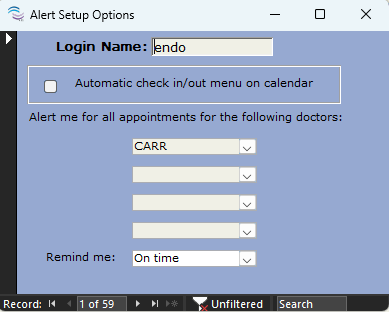
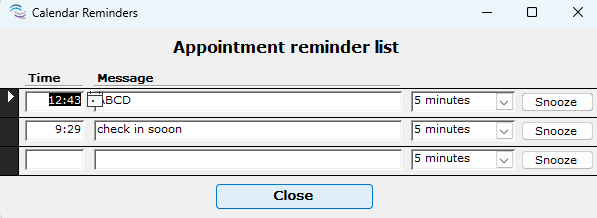
Table of Contents
Detailed Instructions
- Navigate to the Setup ribbon menu
- Select the Program Setup dropdown
- Click Alert Setup Options - this will open the window screenshotted above
- In the bottom left corner where it says Record use the arrows |< < > >| to find the TDO user profile you'd like to update. The user profile name will appear in the box to right of Login Name.
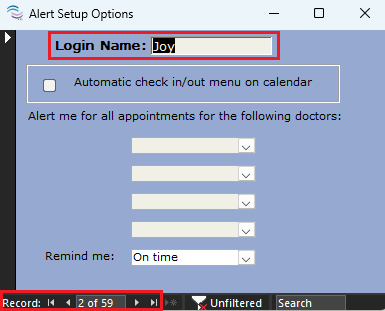
- Optional: When Automatic check in/ out menu on calendar is checked off, the day of an appointment, users with this checked can click on any appointment and the Patient Check In window will open or, if the patient is already checked in, the Patient Check Out will open.
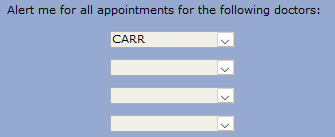
- Under the section labeled Alert me for all appointments for the following doctors, using the four drop downs, you can add zero (0) to four (4) doctors to have the selected user be notified about their upcoming appointments.
- Removing a doctor: highlight the name of the doctor that you'd like to no longer be alerted for and use the delete key or backspace key on your keyboard to remove them
- Use the Remind me dropdown to select the time in advance of the appointment that you'd like to be alerted of the upcoming appointment. There are eight (8) available preset options: On time, 5 min before, 10 min before, 15 min before, 20 min before, 30 min before, 1 hour before, or 2 hour before. This list is not customizable.
- Once happy with the selection, Close to save
Automatic Check in/ out menu on Calendar

Users with this option checked can click on any appointment from the Calendar on the day the patient is scheduled to arrive and either the Patient Check In or the Patient Check Out window will open up depending on if the patient has already been checked in or not.
- Navigate to the Setup ribbon menu
- Select the Program Setup dropdown
- Click Alert Setup Options - this will open the window screenshotted above
- In the bottom left corner where it says Record use the arrows |< < > >| to find the TDO user profile you'd like to update. The user profile name will appear in the box to right of Login Name.
- Check or uncheck the box for Automatic check/in menu on the calendar
- Close to save
This function does not correspond to the selected doctors in the window and will work even when there are no doctors selected.