Updating your OpenVPN client
Estimated Reading Time: 1 MinutesTDO Cloud Services has pushed out a new installer for the OpenVPN client that offers a more robust connector service to help keep you connection connected.
Prerequisites:
- Your server must be on Windows Server 2016 or newer or Windows 10 or newer
- You must have an active TDO Cloud Services account
- Access to your TDO server
- If you are replicated, you need to access your "main" location server
Steps:
- Verify your environment meets with prerequisites above
- Uninstall the old OpenVPN client from Window's Add/Remove programs:
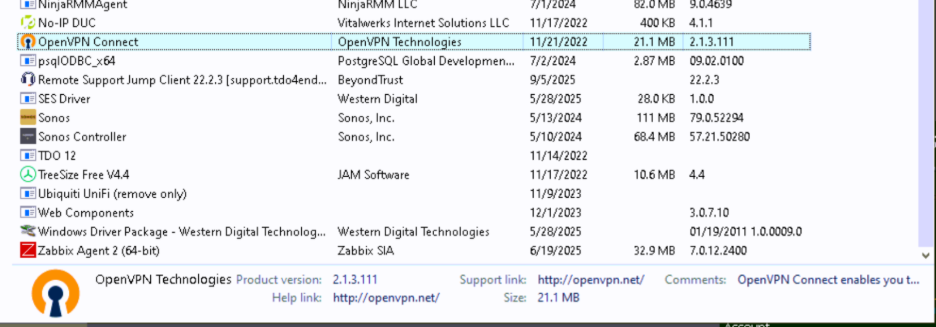
- Navigate to the following folder on your server
- C:\Program Files (x86)\TDOffice\CloudUpdate\CloudSetup\
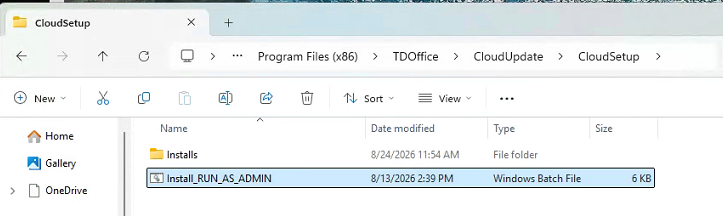
- If the folder does not exist, you might be on the wrong server or you don't have an active TDO Cloud Service account.
- C:\Program Files (x86)\TDOffice\CloudUpdate\CloudSetup\
- Right click the "Install_RUN_AS_ADMIN.bat" file and choose "run as admin"
- This will install the new OpenVPN client and also create the connector service.
- You will see this if all went well:
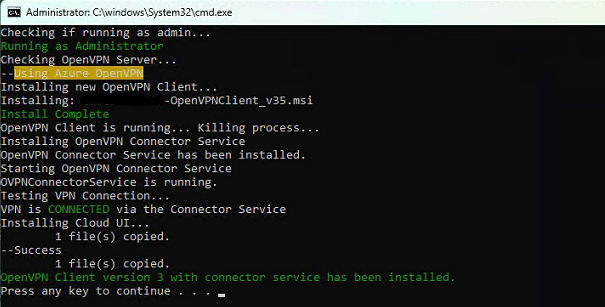
- There is a new icon in your Windows Taskbar:
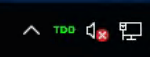
- TDO - Green - VPN is connected
- TDO - Red - VPN is not connected