TDO Comms Update 3.2.70
Estimated Reading Time: 3 MinutesThis article will be going over some of the new features coming out in the TDO Comms update 3.2.70.
There are several new features.
Automation by location
Automation by location is now available in Comms for practices with more than one office. Open Send Automated Messages and you'll see a row of tabs across the top — one for each of your locations, plus an All Locations tab. (Single-location practices won't see tabs at all; nothing changes for you.)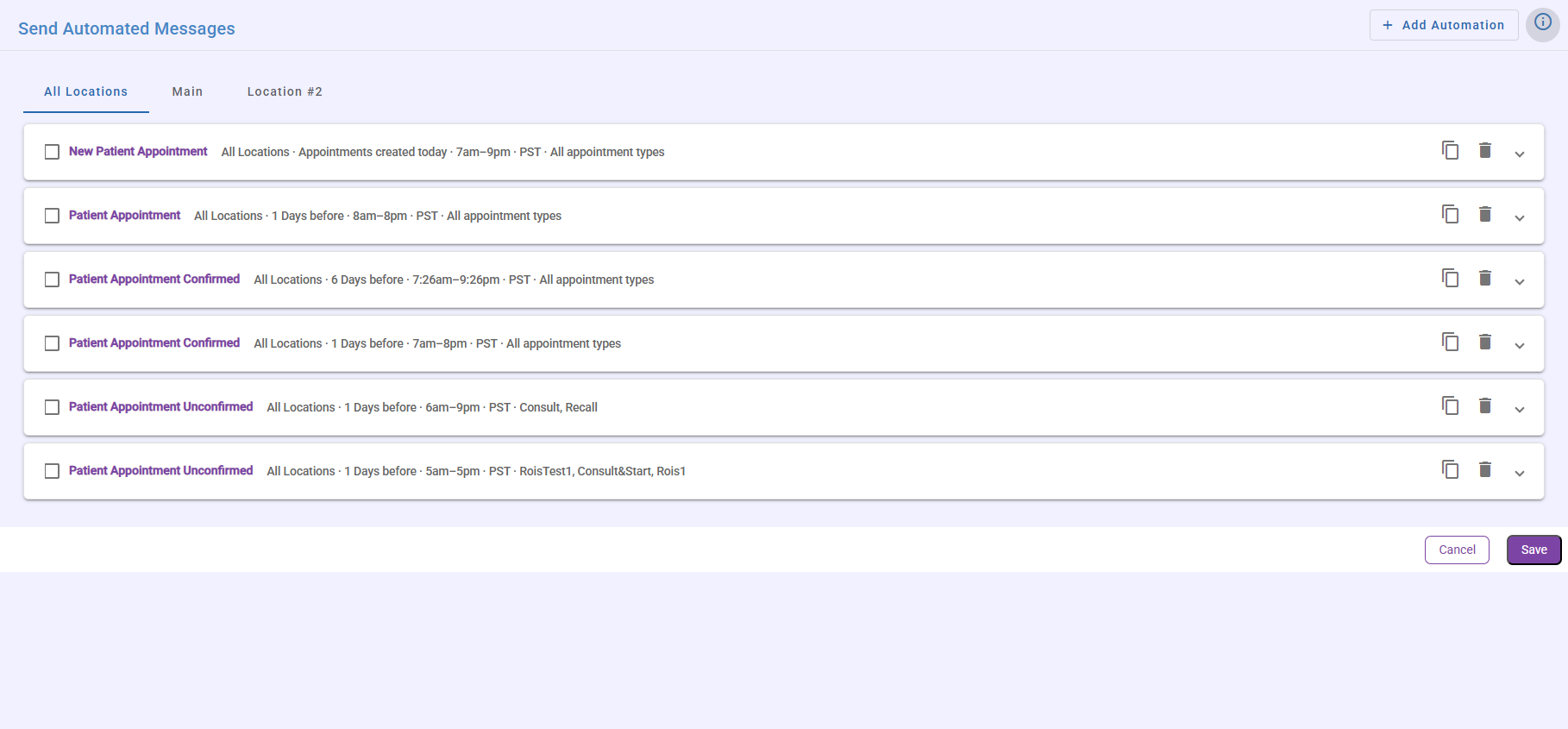
Every automation you already have is set to All Locations, so nothing changes until you decide to split one out. You can keep running exactly as you do today.
Each location can now run its own automations. Your Encinitas office might send a two-day confirmation reminder, while your main office sends a one-day reminder with a different template — they no longer have to share a single set of rules.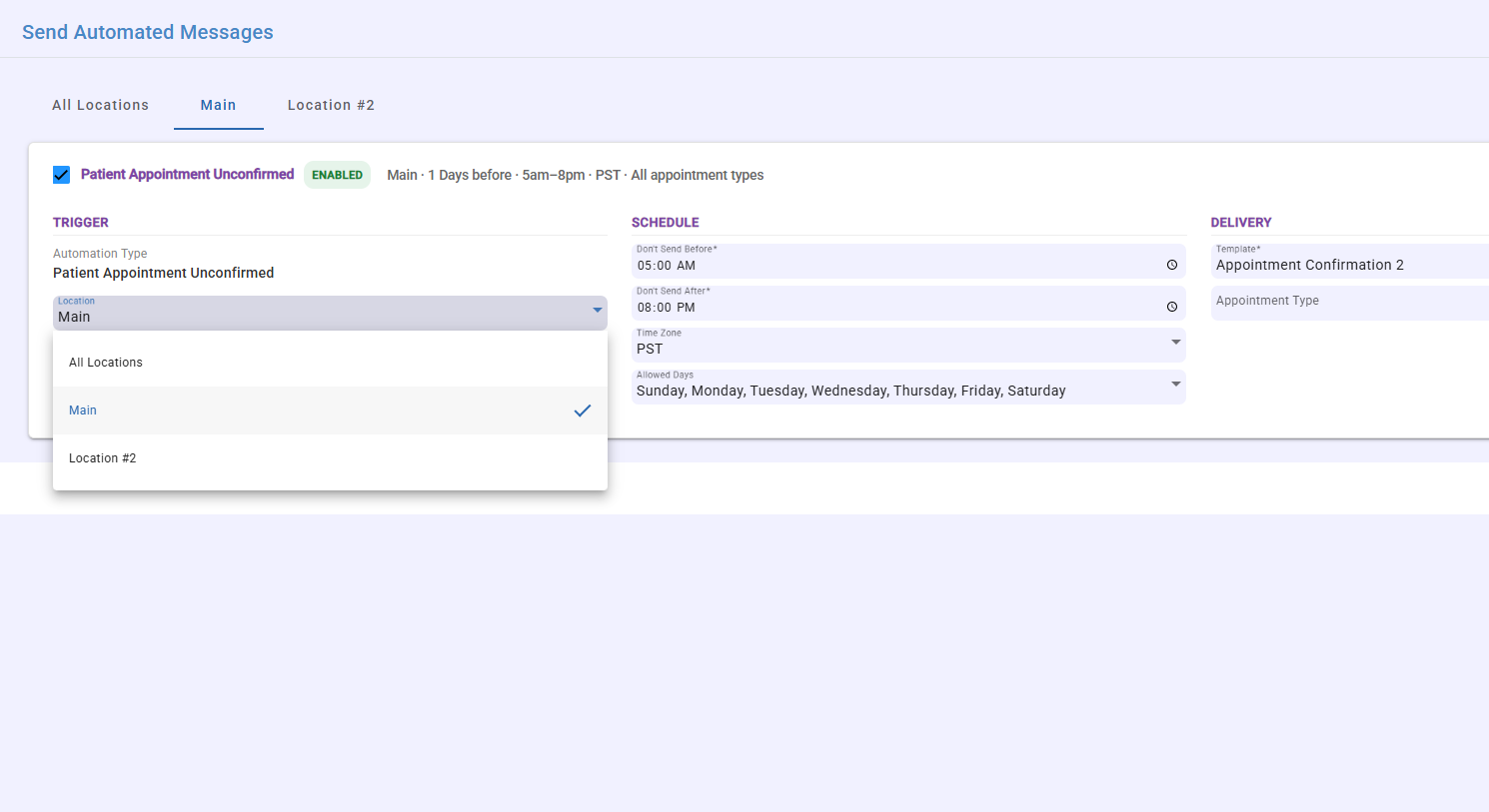
One thing worth understanding: the All Locations tab is not an overview of everything you've set up. It holds automations that send to every office.
Each automation lives on exactly one tab — either All Locations, or the single office it's assigned to. So if you're looking for an automation you built for a specific office, open that office's tab rather than All Locations.
Patients are matched by where the appointment is booked, not where the patient is registered.
If a patient is registered at your main office but books at a second office, they'll receive that second office's reminder. This keeps the message consistent with the office the patient is actually visiting.
Patient Checked Out Query (TDOS)
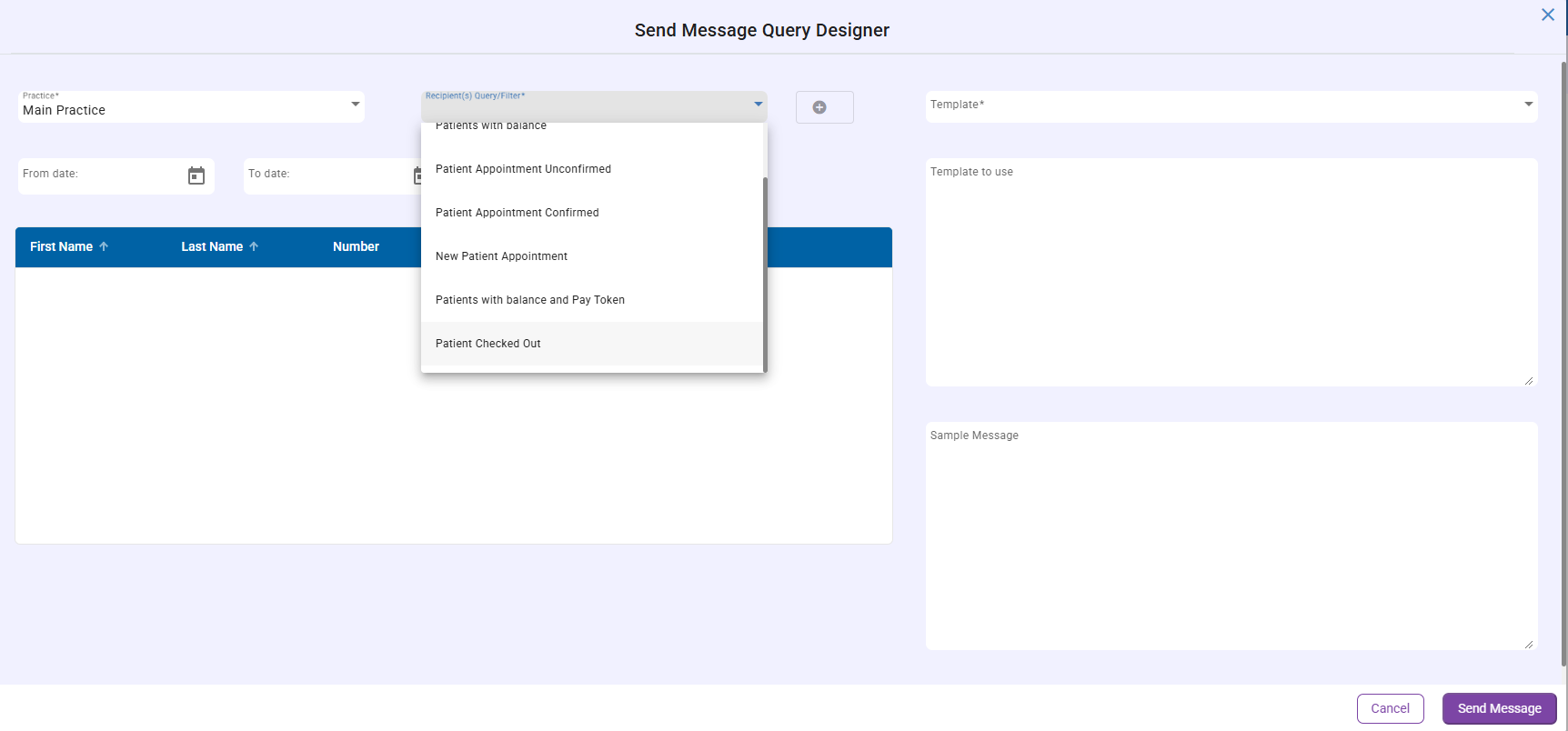
The patient checked out query in Comms is available only for TDOS. This query will be available in both batch messaging and automated messaging. This query is designed to send messages to patients whose appointments have the checked out status on their appointment.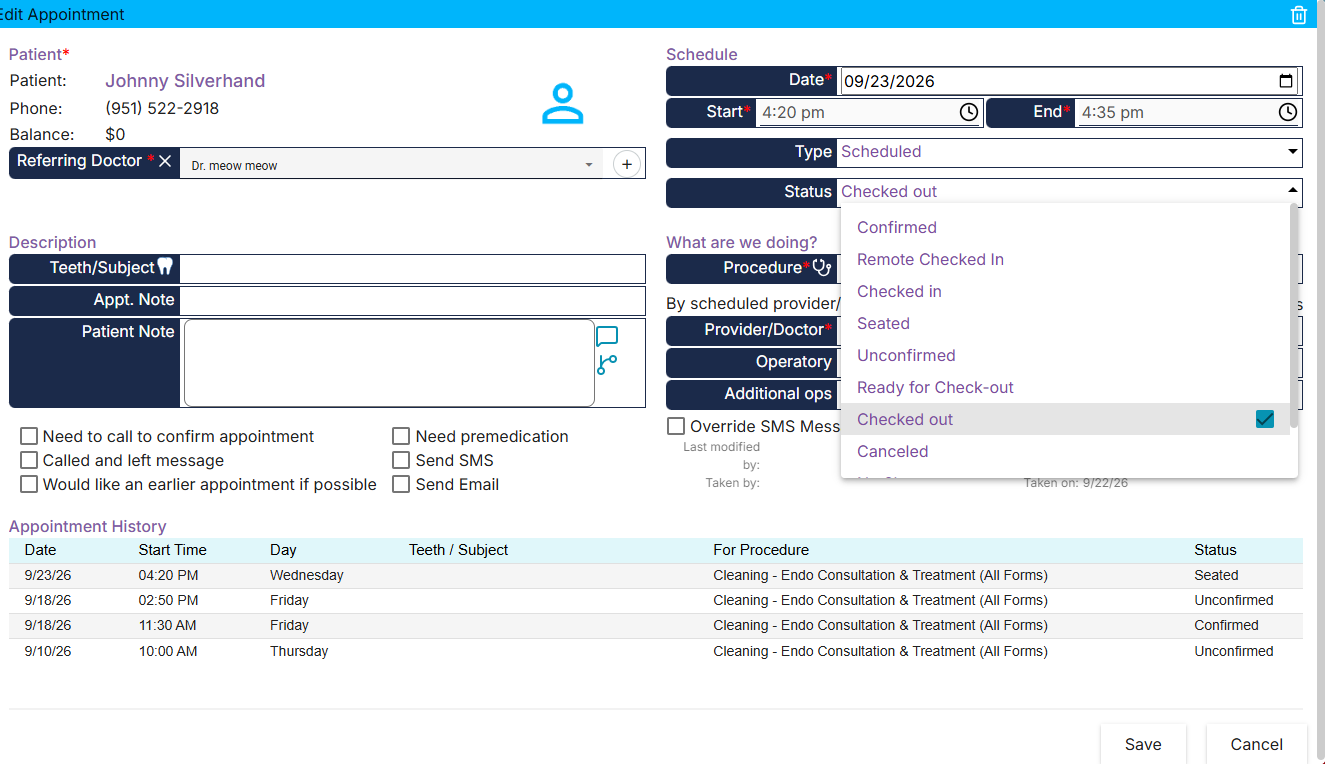
Timing: This isn't a live trigger — it runs on the automation's normal schedule and looks for appointments matching the "Time Before Event" date that are currently Checked Out. Since a future appointment can't be checked out yet, Time Before Event should be 0 or negative (e.g. -1 = "appointment was yesterday").
Where to find it:
Automated Messaging → Add Automation → "Patient Checked Out"
Batch Messaging → Query Designer → Recipient(s) Query/Filter dropdown

<<PortalLoginLink>> Token (TDOS)
There is a new token <<PortalLoginLink>>. You will be able to find it in the template designer under the name Patient Portal Login URL.
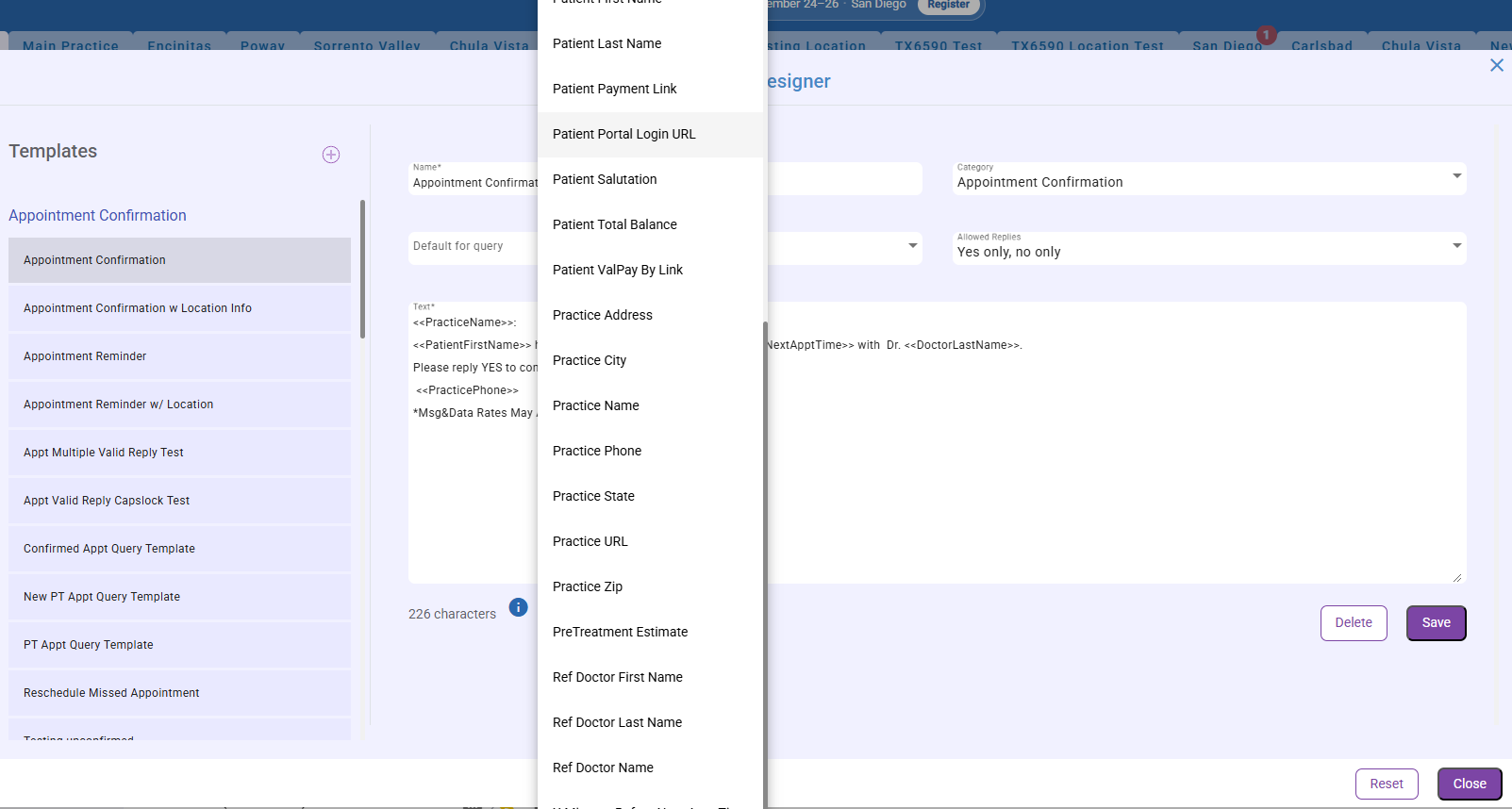
This token will now automatically create a personalized link that signs the patient straight into the patient portal — no username or password needed.
A few things to know:
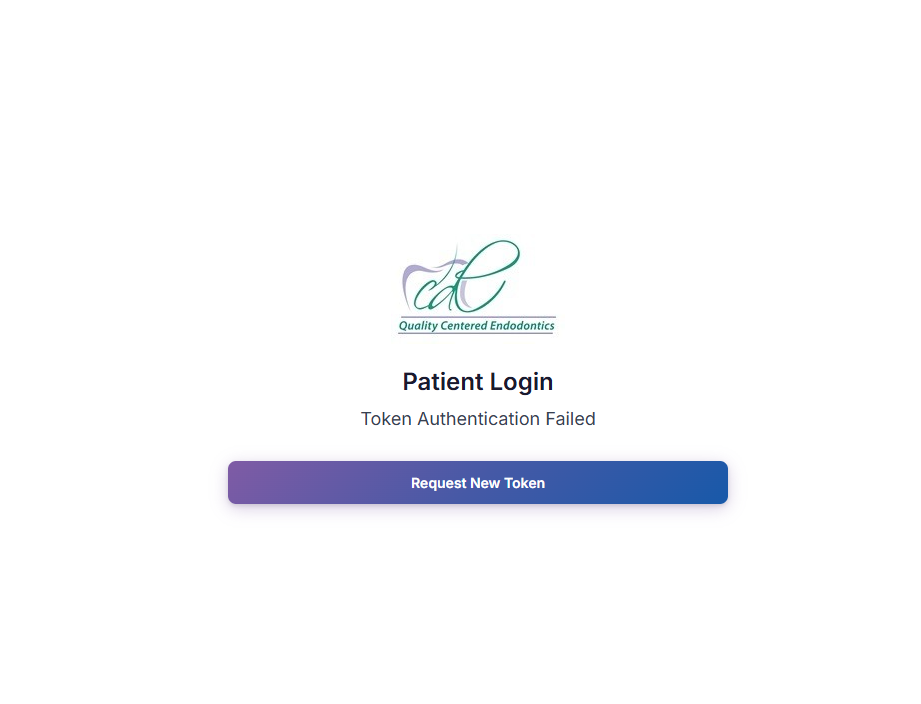
- The link is good for 24 hours from when the message is generated, and it can be used only once. A patient who taps it a second time will see "Token Authentication Failed" and will need a new message sent to them. The patient can request a new message immediatly and it will automatically send them another login.
- Because the link signs the patient in on its own, treat it like a password: it should only ever go to the patient's own phone or email, and patients should not forward it to anyone.
- The token is available for TDOS practices only.