Online Patient Registration
Estimated Reading Time: 3 MinutesOverview
TDO Cloud Service allows your patients the ability to register and complete their medical history, pain history, and review their consent forms in the patient area of your website significantly reducing your patient's wait time when they arrive for their office visit.
Pre-requisites
- TDO Cloud Service
- Admin, Referring Doctor and Patient log in “links” on website
- Optional: TDO hosted website
Detailed Instructions
- Generate the patient’s web username and password in the lower right corner on the Patient Tab
The patient will enter their username and password in the Patient's Area on your website, it is case sensitive.
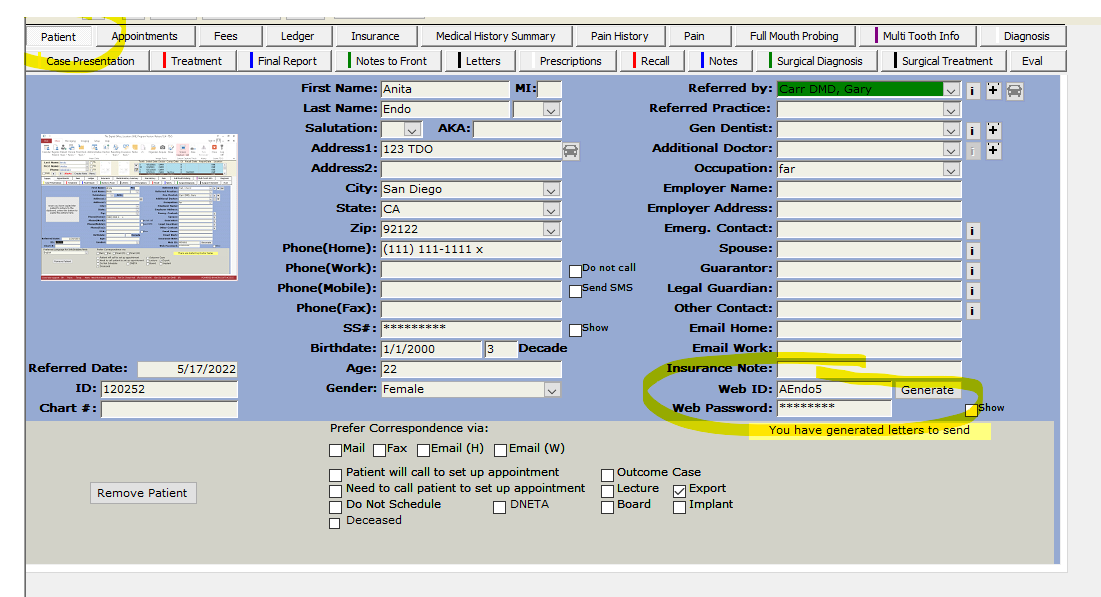
- To send this info to the patient:
Go to the Letters Module >Template: “Patient Registration”; this will autofill the patient’s web username and password.
This template can be customized to match your office’s needs. Send the letter to the patient via the desired method.
Note: In newer versions of TDO, you will not be able to see the Patient's Web Password.

If this is the case:
Go to the Letters Module >Template: “Patient Registration” this will autofill the patient’s web username
On the Patient's Area of your website, the Patient will be prompted to create a password when logging in for the first time.
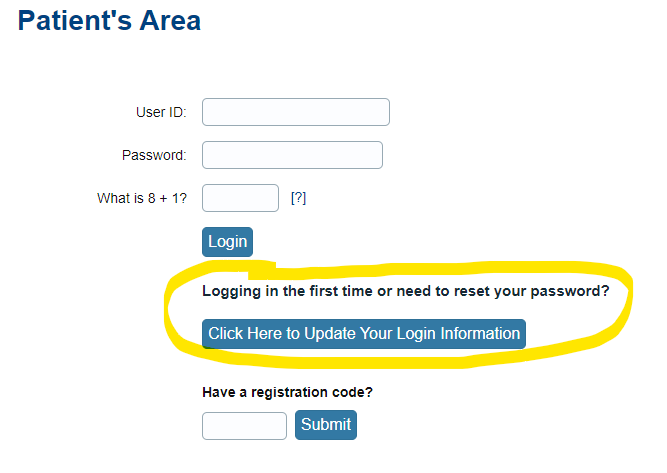
Patient Registration Process
Once the patient has gained access to the Patient's Area, they they must agree to the “Terms of Use of TDO Cloud Services” If it is their first time logging in.
There will be a terms of conditions for patients and it is only displayed once per user. The patient will need to accept the terms before continuing to the login pages.
You can disable the terms of conditions for patients through the Web Wizard under Patient Login area.

Patient Registration: The patient will fill in their information, such as address, phone number, dental insurance, etc., and click “save.” The information is then transferred into your TDO.
Medical History: The patient is then prompted to fill out the medical history you have selected.
There are two medical history forms that come with TDO, a short form and a long form. There is also an option to create a customizable one in TDO. Please refer to the KB article for more information. The patient can always review, make necessary changes, and sign in the office.
The medical history expires after 30 days.
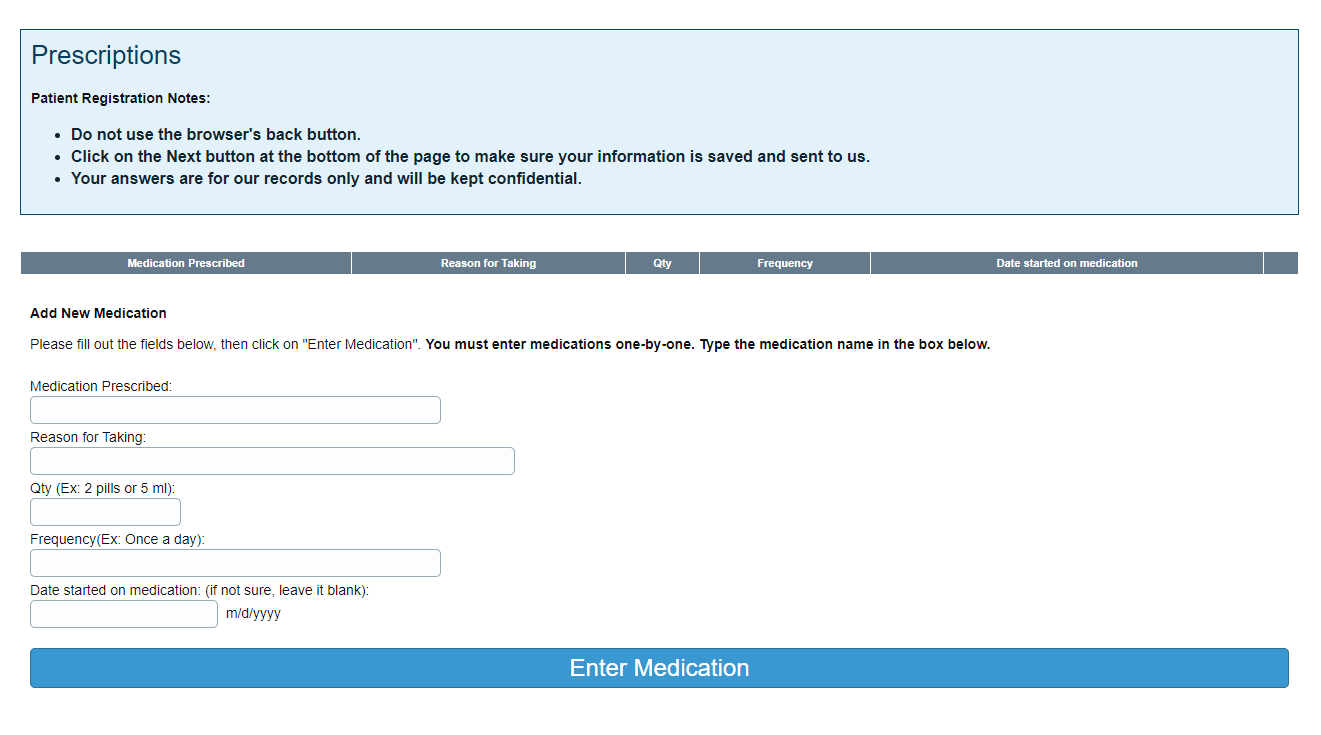
Prescriptions: The patient is then prompted to add their medications.
If they stop taking a medication, it is recommended that they mark it as ‘stopped taking’ so a record of past medications remains.
Pain History: Patient will answer questions regarding tooth pain, severity and surrounding area.
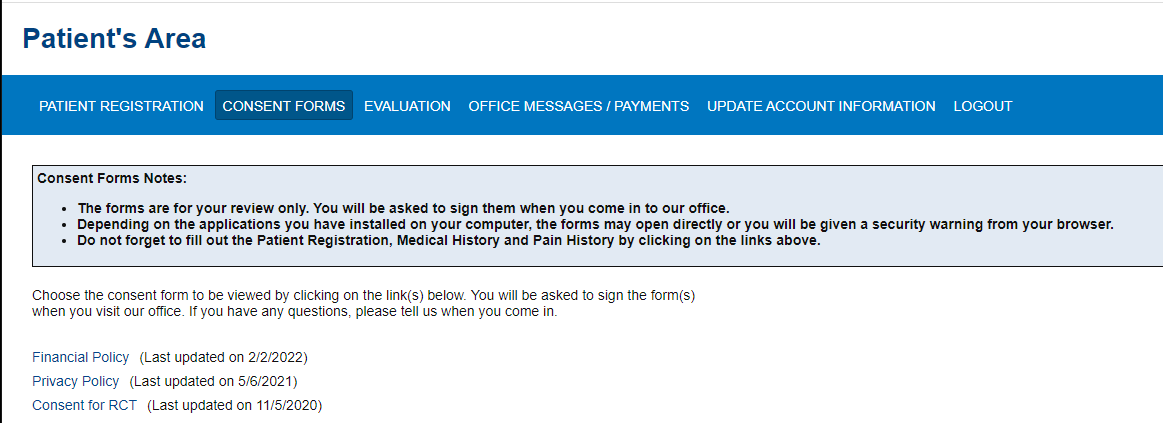
Consent Forms: The patient can review the consent forms before signing them in the office.
Evaluation: The patient is able to leave feedback about their visit. They have 30 days post appointment day to leave feedback.
The responses can be viewed in TDO under Main Data > Treatment Questionnaire
Office Messages/Payments: Any emails or letters send to the patient through the letters module will be visible here.
The patient can also view their current balance and make a payment online. Please see: TDO E-Commerce
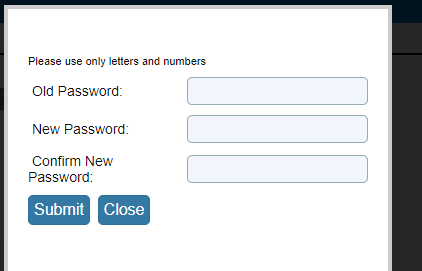
Update Account Information: Patients can change their login password here.
Through this method, patients are only able to fill out and review consent forms.
To sign forms from home, please see Ability to sign forms from home